Models from different packs place predictably when they share three technical conventions: the same unit (1 unit = 1 metre in glTF), the same up axis (+Y) and a pivot on the ground footprint, so a model placed at height 0 stands on the floor. Artistic proportions are a separate question: a stylised kit can use metres and still be built smaller than life.
Why it matters
A level is built from hundreds of placements. If one pack models a door at 2.1 units and another at 210, or one puts the pivot at the centre of the bounding box and another at the base, every placement needs a correction — and every correction is a chance for a building to float, sink or sit at the wrong size next to a car. Shared technical conventions remove the systematic part of that correction.
The three conventions
- Scale. glTF defines its unit as one metre. A model that respects it has a door about 2–2.2 m tall and a car about 4–5 m long, and needs no scale factor in any engine that also works in metres.
- Up axis. glTF is +Y up. Blender is Z-up internally, but its glTF exporter converts to +Y by default, so a correct export needs no rotation.
- Pivot. The origin should sit on the ground footprint, not at the centre of the bounding box. Then
y = 0is the floor, snapping to a grid works, and rotating a building turns it in place instead of swinging it around.
Facing direction is a fourth, softer convention. The glTF specification says the front of an asset faces +Z, but many kits pick their own. What matters is that every model in a kit faces the same way, so a single rotation fixes the whole kit if your tools expect the other side.
Units are not proportions
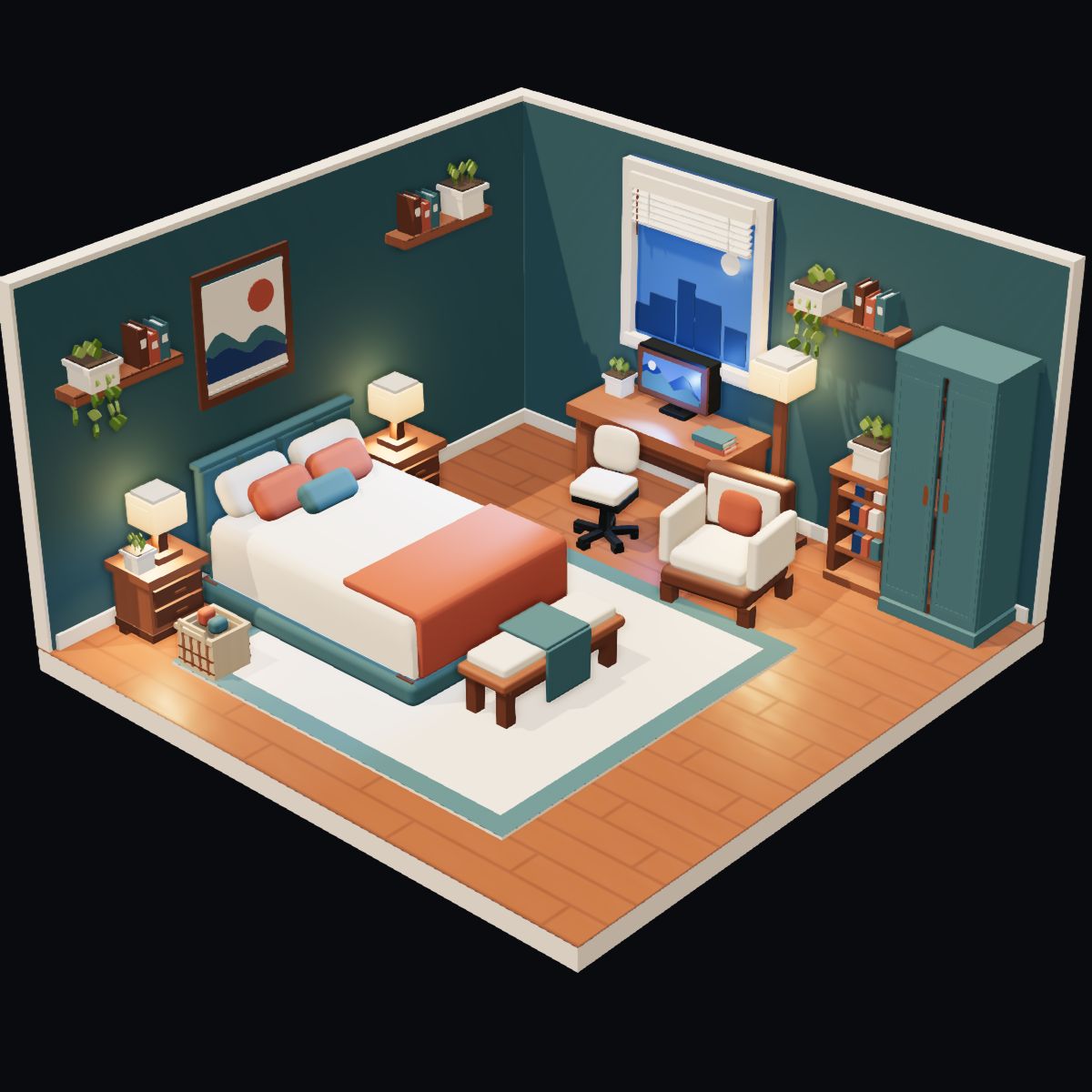
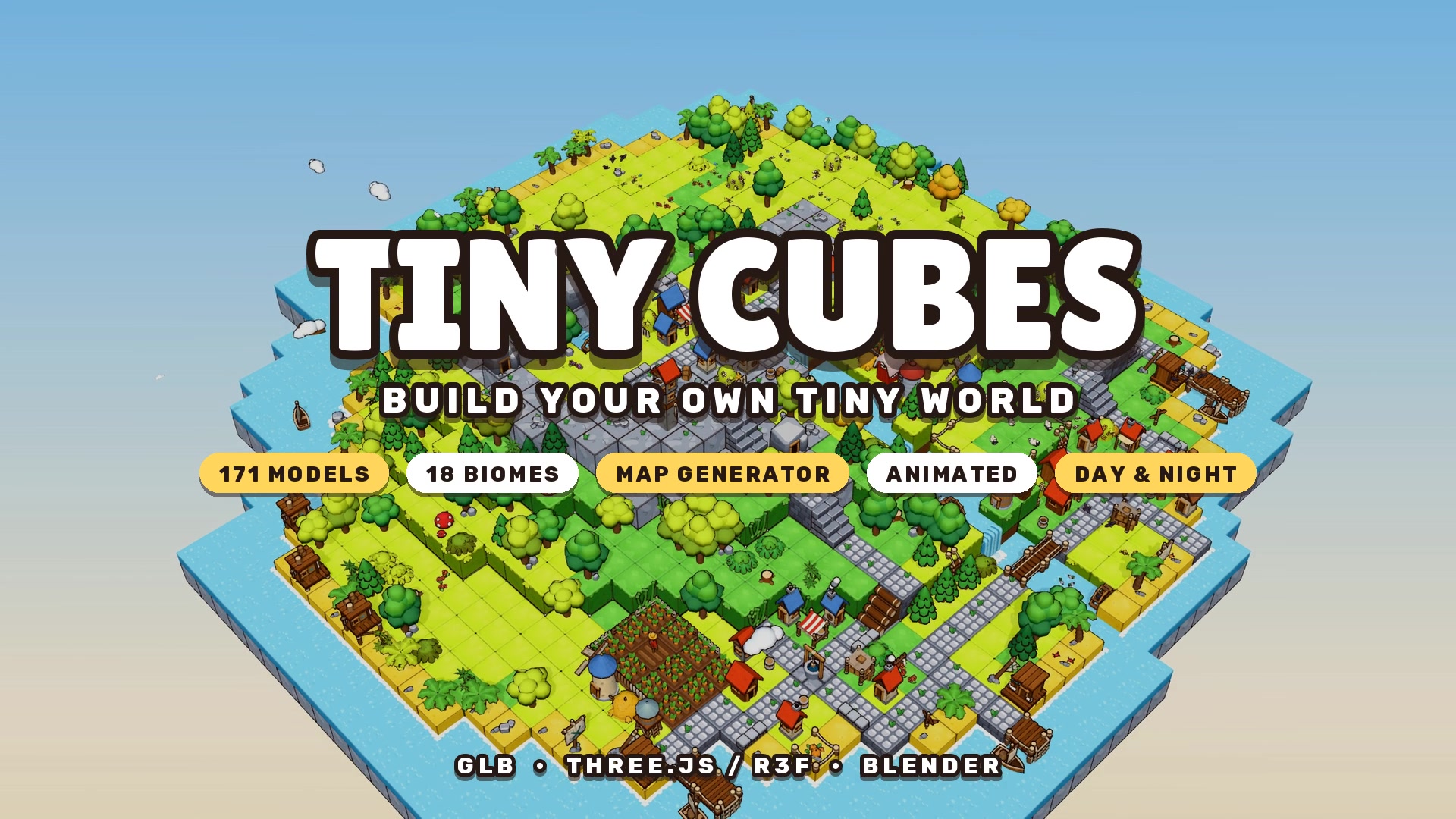
Two packs can both use metres and still not match. Realistic kits model a building at its real size; stylised kits often shrink buildings relative to characters and props so a scene reads well from a game camera. In our own catalogue, the Tiny Cubes Wood Cabin is about 2.4 m tall while the Brown City Dutch Gable Townhouse is about 12.6 m — both correct for their style, but not meant to stand on the same street unscaled.
So check three things separately: the unit (does a model load at the size its author intended?), the pivot (does it stand on y = 0?) and the proportions (does a door fit a character from the other pack?). Only the first two can be fixed once for a whole kit; mixing art styles is a design decision.
How each engine treats units and axes
| Tool | Unit | Up axis | What happens to a metre-scale glTF |
|---|---|---|---|
| three.js / R3F | 1 unit, by convention 1 m | +Y | Loads at the right size, no conversion |
| Blender | 1 m (default scene) | +Z | The glTF importer converts +Y up to +Z up |
| Unity | 1 m | +Y | glTFast imports at the right size and converts to Unity’s left-handed axes |
| Unreal Engine 5 | 1 cm | +Z | The glTF importer converts metres to centimetres; a 2 m door reads about 200 units |
| Godot 4 | 1 m | +Y | Imports at the right size, no conversion |
Check a model in ten seconds
Box3.setFromObject() measures in world space, so run it on the freshly loaded scene, before you move, rotate or scale it. With the root at the origin and no transform, world space equals the model’s own space:
const root = gltf.scene; // just loaded: position 0, no rotation, scale 1
root.updateMatrixWorld(true);
const box = new THREE.Box3().setFromObject(root);
console.log(box.getSize(new THREE.Vector3())); // size in metres
console.log(box.min.y); // ≈ 0 when the origin sits on the ground footprint
World-space bounds only match the model’s own space while neither the root nor its parents is moved, rotated or scaled. For a model that is already placed, measure a detached clone with its transform reset. The clone has no parent, so nothing above it applies:
const probe = placed.clone(true);
probe.position.set(0, 0, 0);
probe.rotation.set(0, 0, 0);
probe.scale.set(1, 1, 1);
probe.updateMatrixWorld(true);
const local = new THREE.Box3().setFromObject(probe);
A min.y of about 0 only shows that the origin is at ground level. To confirm it also sits on the footprint, check that 0 falls between min.x and max.x and between min.z and max.z.
In Blender, select the object and read Dimensions in the N panel. A house that reports 0.08 m or 800 m tall was exported with the wrong unit setting.
Fixing a model that is off
- Wrong scale: apply the factor once in a DCC tool and re-export, rather than scaling every instance in code.
- Pivot in the centre: in Blender, apply rotation and scale first (Ctrl+A ▸ Rotation & Scale). Then put the 3D cursor at ground level under the model: in Edit Mode, select the bottom faces and use Shift+S ▸ Cursor to Selected. Back in Object Mode, use Object ▸ Set Origin ▸ Origin to 3D Cursor, and clear the location with Alt+G so the file exports with no offset. Do not apply Location afterwards: that moves the origin back to the world origin. Re-export and run the check above on the new file.
- Wrong facing: rotate the root by 180° around the up axis and apply the rotation before exporting.
How 3D Asset packs handle it
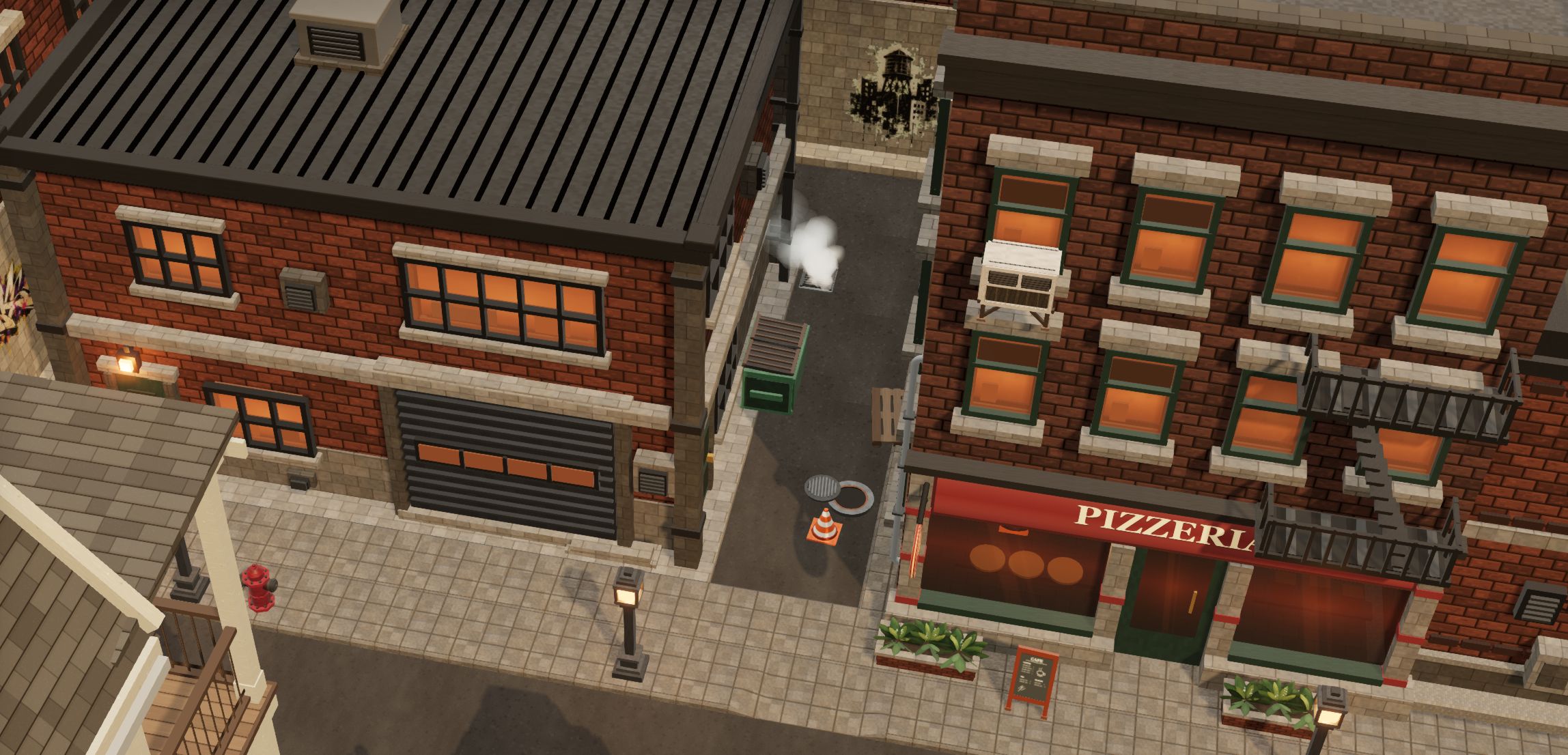
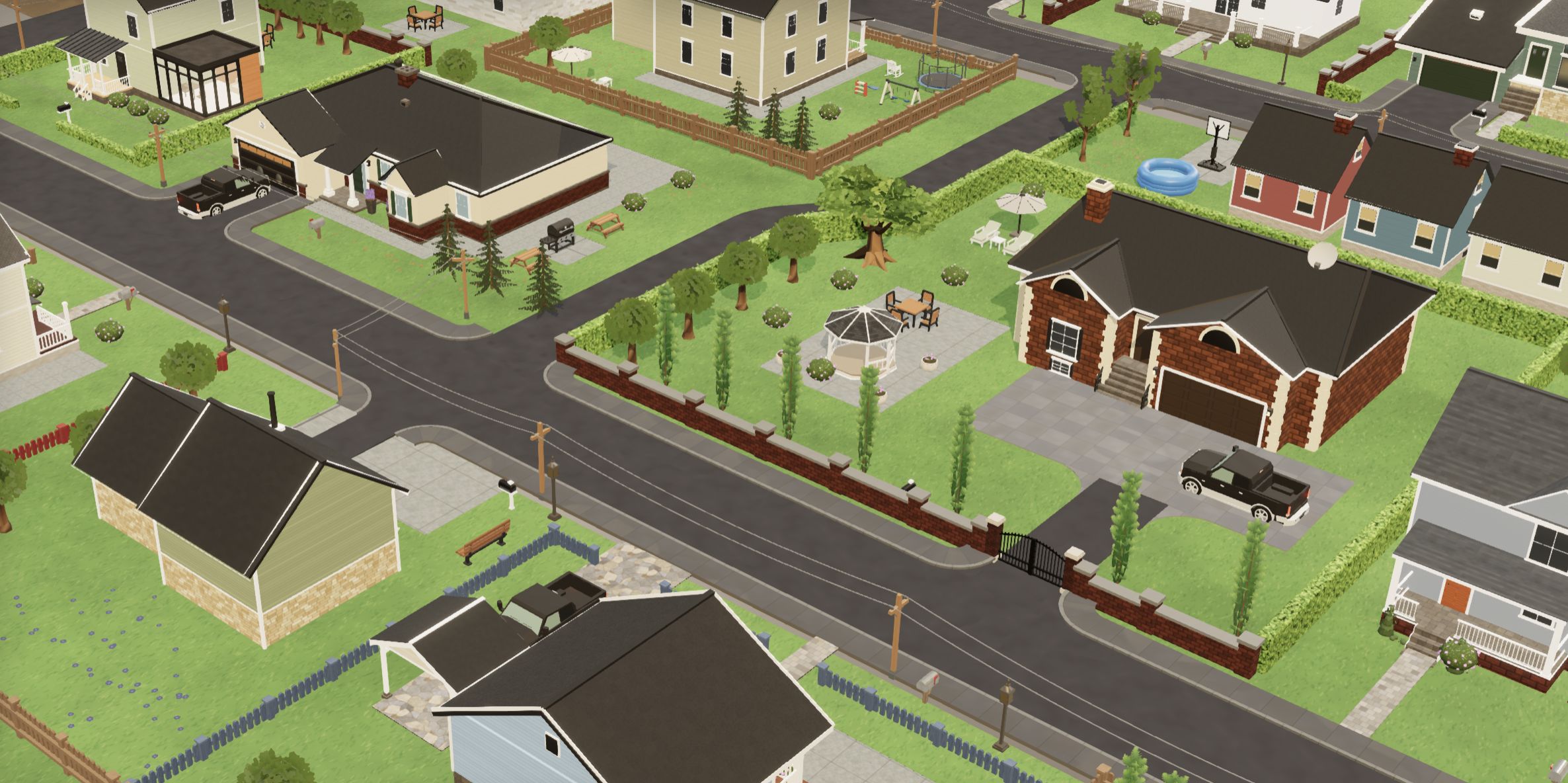
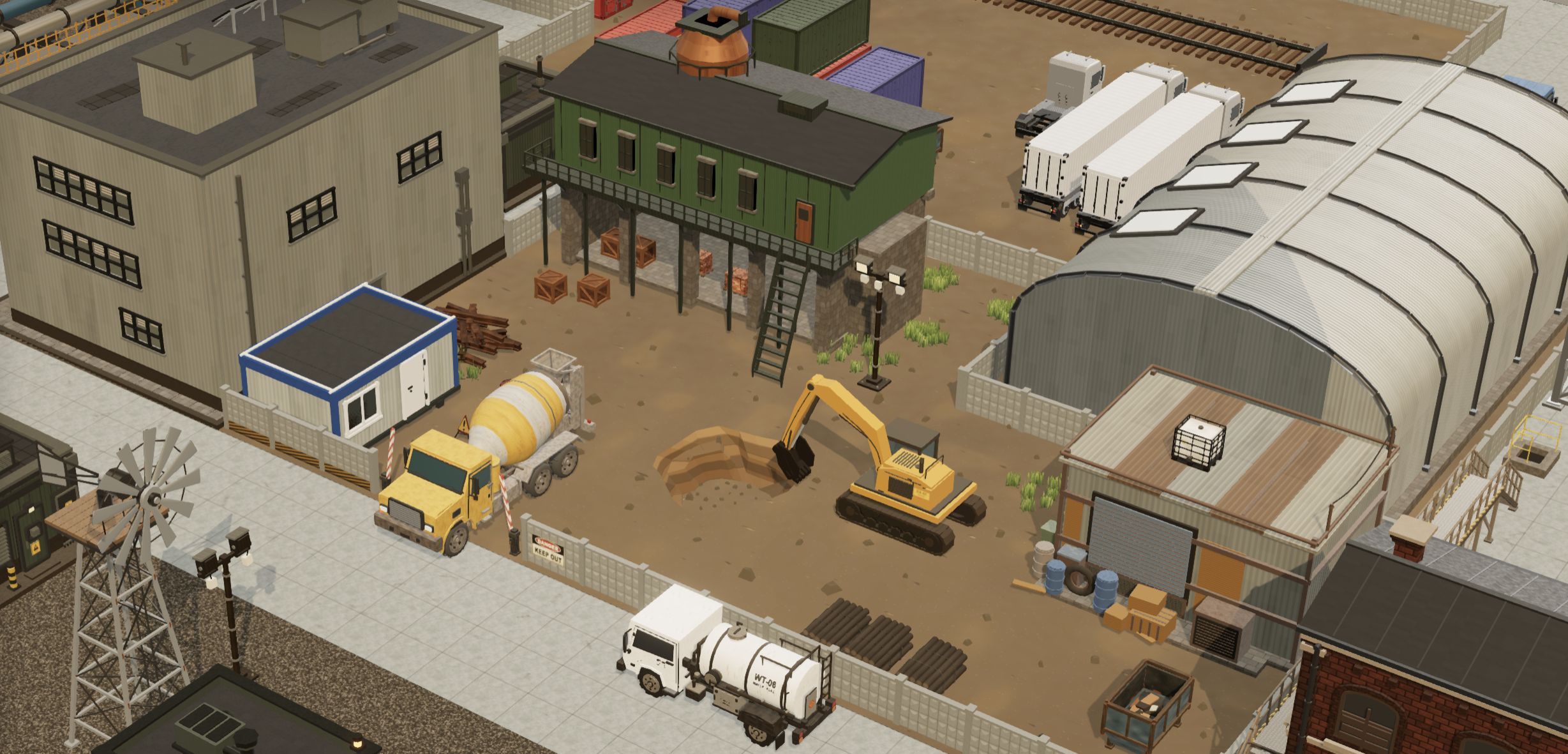
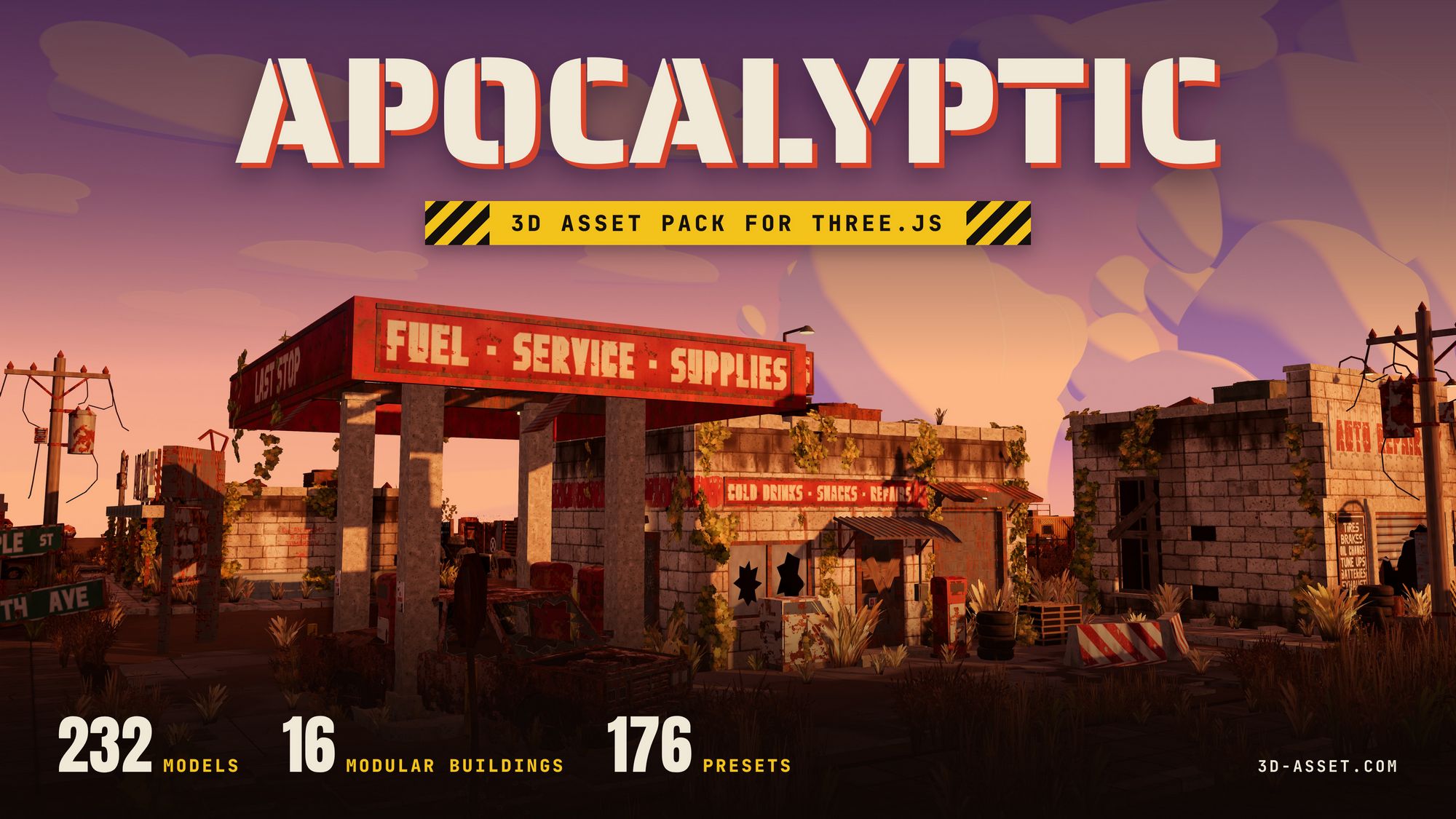
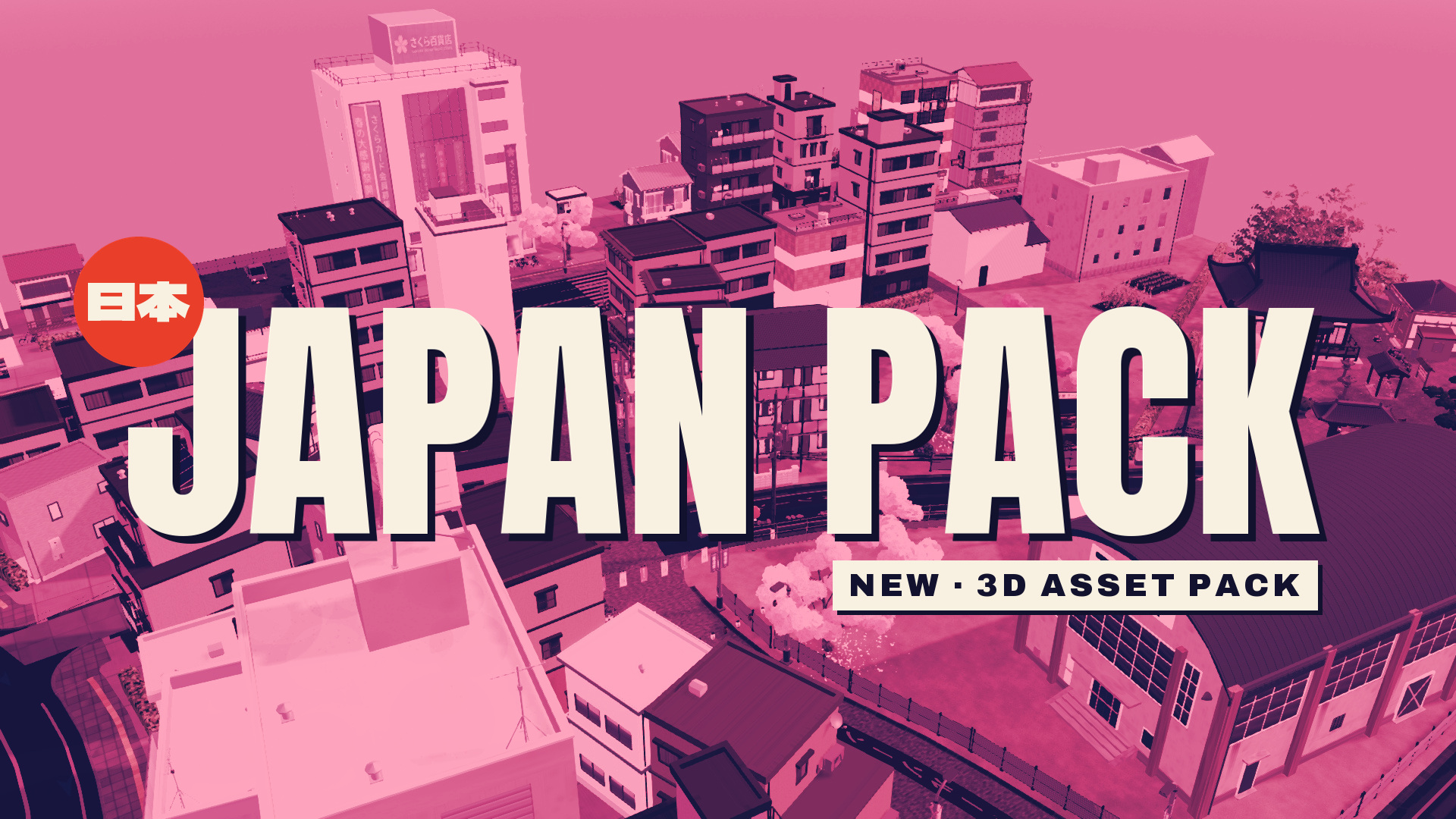
Every pack uses the same technical rules: 1 unit = 1 metre, +Y up, models face −Z, origin on the ground footprint. The realistic packs — Brown City, Suburban, Industrial and Japan — are also built at real-world size, so they can share a street. Stylised packs such as Tiny Cubes and Cozy Town keep their own proportions. Each model page prints its measured width, depth and height, so you can compare sizes before buying.
Frequently asked questions
Is glTF always in metres?
Yes. The glTF 2.0 specification defines the unit for linear distances as metres. A file can still be modelled at the wrong size, but there is no unit setting to get wrong at load time.
Why does my model come into Unreal 100 times too small?
Unreal works in centimetres. Its glTF importer normally converts metres to centimetres; if a model arrives at 1/100 size, check the import scale in the import options and whether the source file was exported at the wrong size.
Should the pivot be at the bottom or the centre?
For anything that stands on the ground — buildings, props, characters, vehicles — at the bottom, on the footprint. Centre pivots suit objects that spin freely, such as wheels or rotors, which usually get their own pivot nodes inside the model.