Check three things, in this order. 1. Light: is there anything for the materials to be lit by and to reflect — a light, and for metals an environment map? 2. The final colour conversion: does the image reach the screen converted to sRGB and tone-mapped as intended? 3. The materials in the file: are they what you think — metalness, vertex colours, supported extensions? The table below maps what you see to the cause and the section with before/after renders.
Find your case
Match what you see, then follow the link for screenshots and the fix. The examples use three.js’s WebGLRenderer and the standard PBR (physically based rendering) materials, MeshStandardMaterial and MeshPhysicalMaterial. React Three Fiber changes two defaults: its <Canvas> enables ACES Filmic tone mapping unless you pass flat, and sRGB output unless you pass linear (see our R3F guide). Custom shaders, WebGPURenderer and custom post-processing chains can behave differently.
Scroll the table sideways for all columns →
| What you see | Likely cause | How to check | Fix |
|---|---|---|---|
| Solid black silhouette, background renders fine | No lights and no environment | scene. is null and no light with intensity > 0 is in the scene | Add an environment map, then a directional light |
| Very dark, but highlights from the sun still show | Metalness near 1 without an environment map | Print the materials (snippet below): metalness close to 1? | Add scene.; if the surface is not metal, fix metalness in the file |
| Dark only in three.js; fine in Blender or a glTF viewer | Materials load as metallic | Snippet below: is metallic missing on paint, plastic, wood or fabric? | Set the correct metalness in the source file and re-export |
| Whole frame darker and more contrasty, dark tones crushed | Linear output | renderer.; with a composer, is there an Output? | SRGBColor; light-value effects → Output → FXAA |
| Dark after upgrading from r154 or older | Light code written for the old units | Intensities around 1 copied from an older tutorial | Rescale intensities (×π; point lights roughly ×π·d²) |
| Darker with tone mapping on | Low exposure | renderer. | Exposure near 1, then adjust lights |
| Untextured white or grey metal | Spec-gloss material, unsupported since r147 | extensions contains KHR_materials_pbr | gltf-transform metalrough |
| Black or near-black, textures still faintly visible | A dark COLOR_0 multiplies the base colour | vertex in the snippet output | Export without the stray colour attribute |
| Surface visible, but lit from the wrong side | Inverted vertex normals | Lit sides dark, shadowed sides lighter | Recompute or re-export normals |
| Faces disappear from some angles | Face orientation and back-face culling | Blender’s Face Orientation overlay | Recalculate outside; side only for real thin surfaces |
| Metals black only with cascaded shadows | CSM in three.js r186 | THREE. | Upgrade to r187 |
How to see what the file contains. Without code: drop the GLB on gltf.report or run npx @gltf-transform/cli inspect model.glb. In your app, right after loading:
const gltf = await loader.loadAsync('model.glb');
const json = gltf.parser.json;   // the GLB's JSON chunk (a GLTFLoader internal)
console.log('extensions:', json.extensionsUsed);
console.table((json.materials || []).map((m) => ({
  name: m.name,
  metallicFactor: m.pbrMetallicRoughness?.metallicFactor,          // missing = 1
  metalRoughTexture: !!m.pbrMetallicRoughness?.metallicRoughnessTexture,
})));
gltf.scene.traverse((o) => {
  if (!o.isMesh) return;
  for (const mat of [].concat(o.material)) {
    console.log(o.name, mat.type, 'metalness', mat.metalness, 'vertexColors', mat.vertexColors);
  }
});
Expect metalness 0 (or a metal/rough texture) on paint, plastic, wood, rubber and fabric, and close to 1 only on bare metal. vertexColors: true means the base colour is multiplied by the mesh’s COLOR_0.
Mean brightness of the tank’s pixels, broken and fixed (higher is brighter)
- As broken
- After the fix
All values, with the share of near-black pixels
| Case | Broken | Near-black pixels | Fixed |
|---|---|---|---|
| No lights, no environment | 0% | 100% | 27.1% |
| Metalness 1 (no metallicFactor) | 4.9% | 57% | 29.4% |
| outputColorSpace linear | 7.7% | 50% | 27.1% |
| Dark COLOR_0 | 8.4% | 42% | 27.1% |
| EffectComposer without OutputPass | 11.2% | 28% | 27.2% |
| Ambient + sun, no environment | 12.8% | 27% | 27.1% |
| r150 light code in r180 | 14.4% | 7% | 35.2% |
| Ambient light only | 16.4% | 7% | 27.1% |
| AgX, exposure 0.25 → 1 | 16.6% | 14% | 37.3% |
| Inverted vertex normals | 19.2% | 6% | 27% |
| Spec-gloss file | 27% | 25% | 31.2% |
How we tested
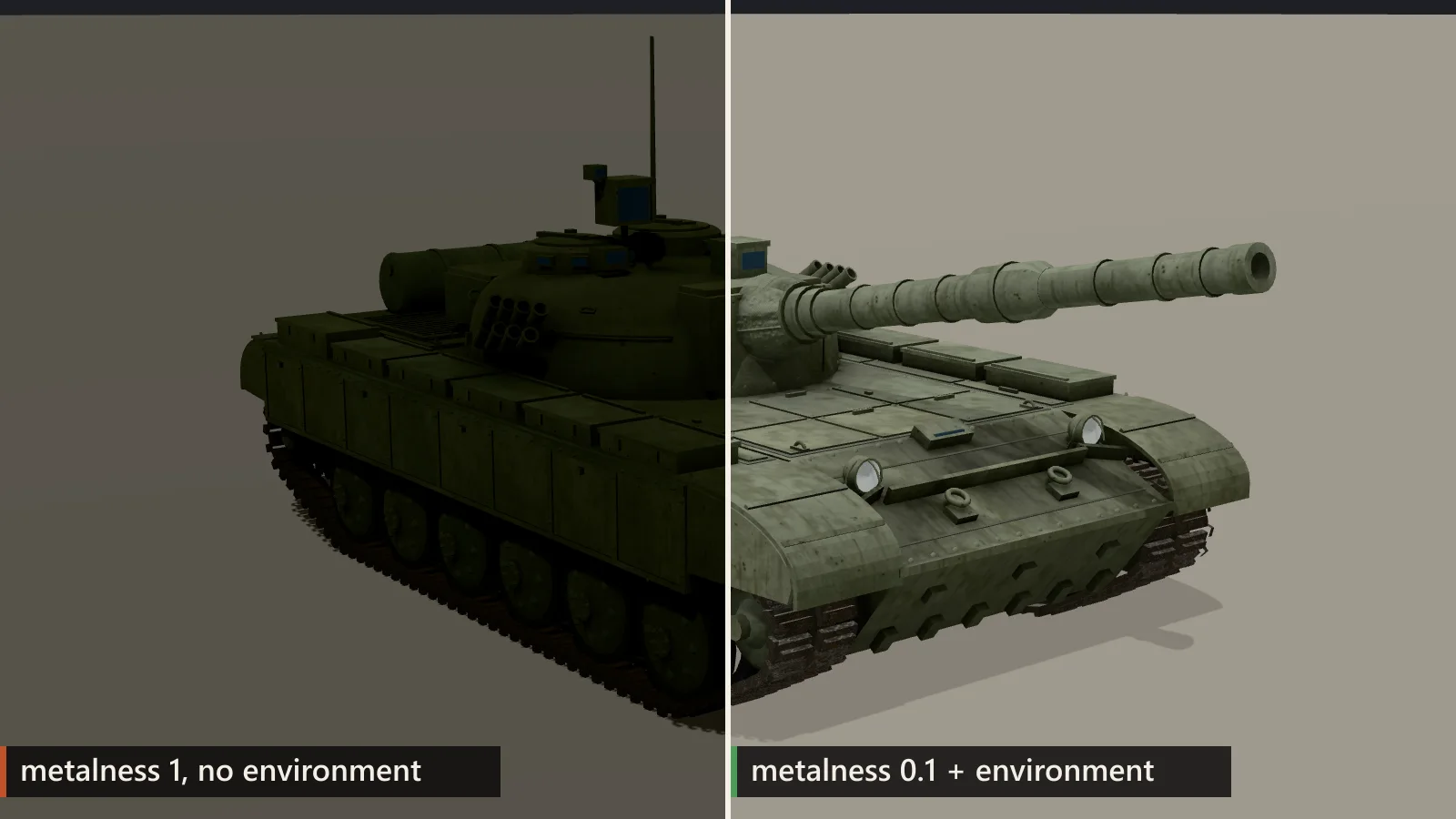
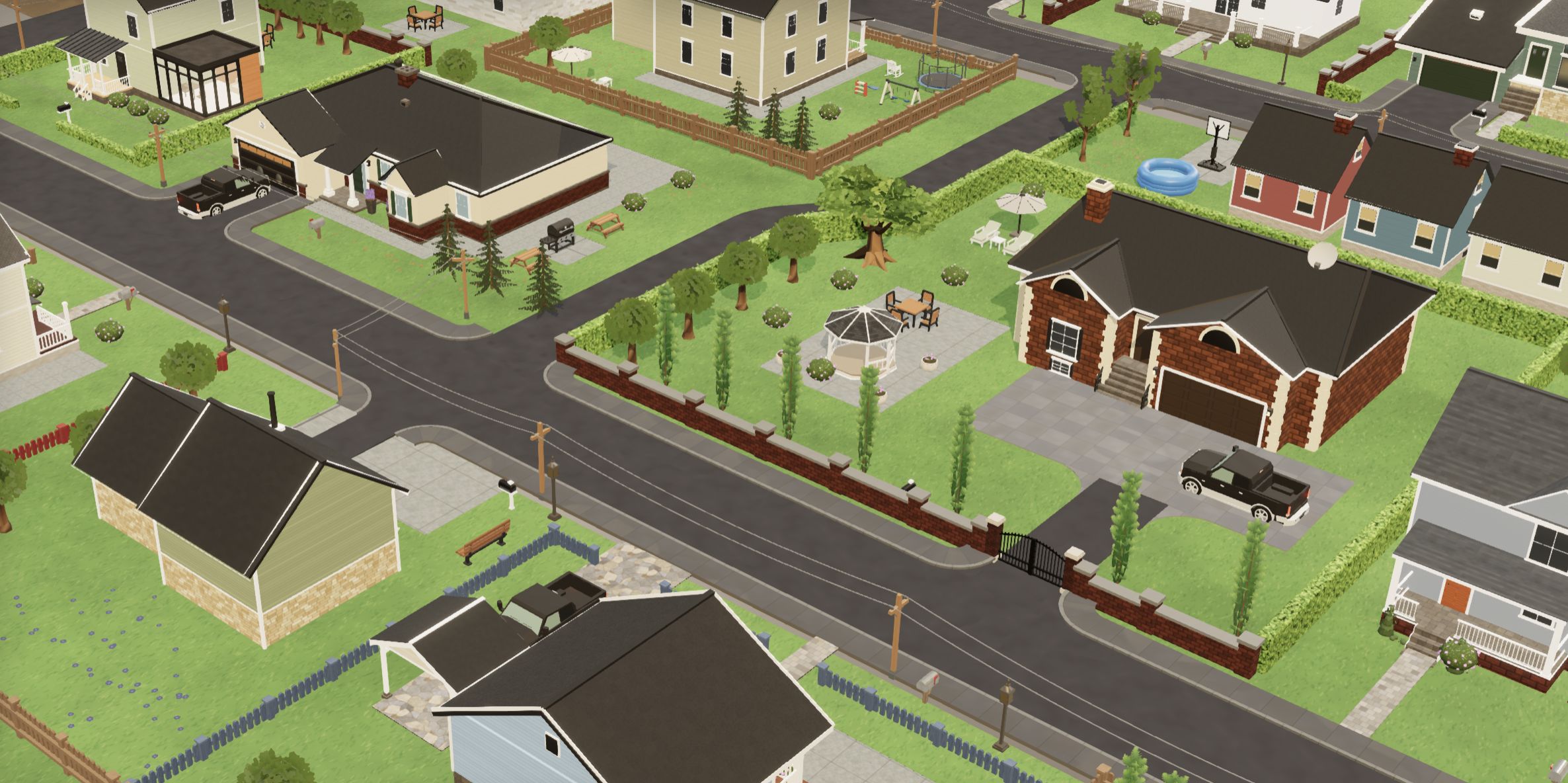
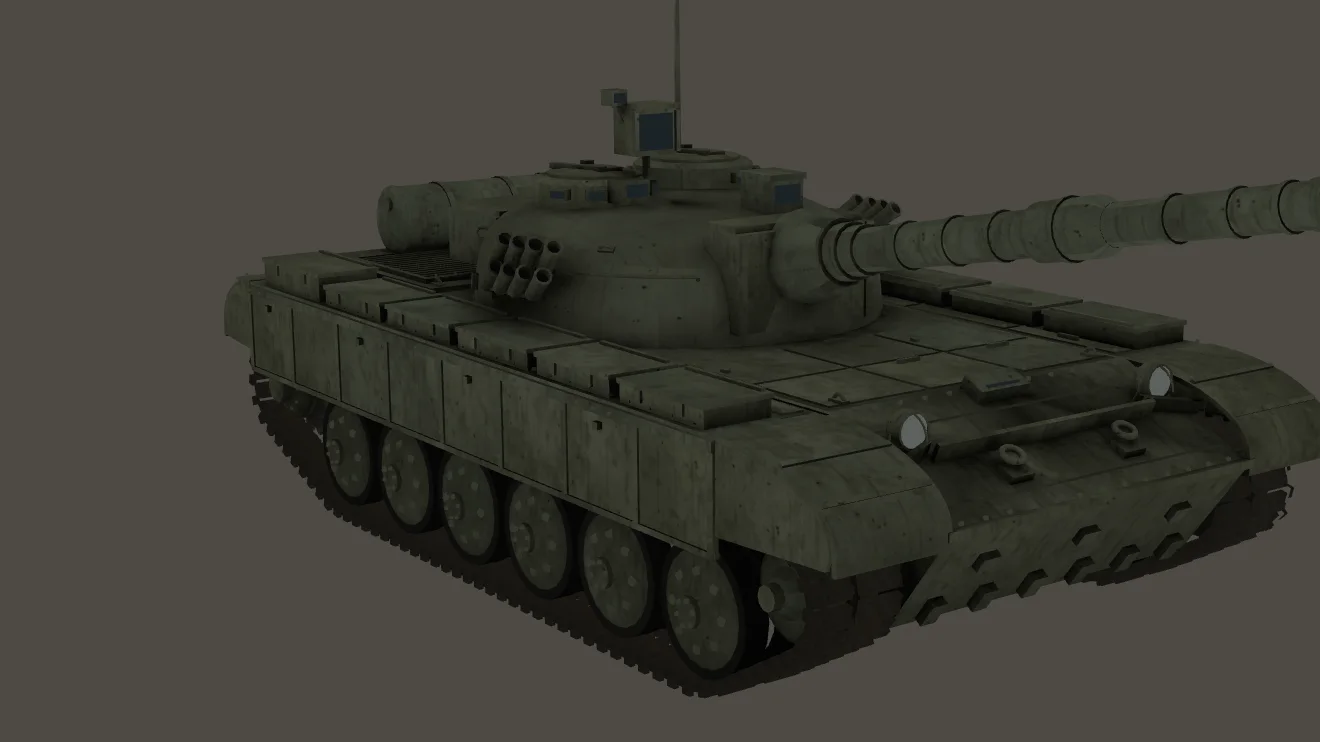
metallicFactor produces), lit by an ambient light and a sun. Right: the original metalness values (0–0.6), an environment map, a sun and Neutral tone mapping.One real game model: the T-72 from our Military pack — seven PBR materials with base colour, normal, roughness/metal and AO maps, plus a COLOR_0 attribute that darkens the rubber. From it we built faulty copies with glTF Transform, each with one problem: no metallicFactor, materials converted to spec-gloss, COLOR_0 set near black and vertex normals negated. For lighting we added the village from our Cozy Town pack, a row of test spheres and a small glass scene.
Each variant was rendered in headless Chrome at 1600×900 with the same camera, and we measured the final 8-bit image: mean brightness is the average luma (0.2126 R + 0.7152 G + 0.0722 B) over the model’s pixels only, found with a separate mask render; near-black is the share of those pixels below 6%. The reference setup is an environment map from RoomEnvironment, a DirectionalLight of 2.5 with shadows and NeutralToneMapping; it measures 27.1% because the tank is dark green. Everything ran on NVIDIA GeForce RTX 4060 Laptop GPU, Chrome 156, ANGLE → Direct3D 11, three.js r180 unless stated, 1600×900; for version comparisons the same page loaded three.js r150, r186 and r187 from npm.
The numbers compare setups on one model; they are not a quality score — a correct render of a black car is dark too.
Metals need something to reflect
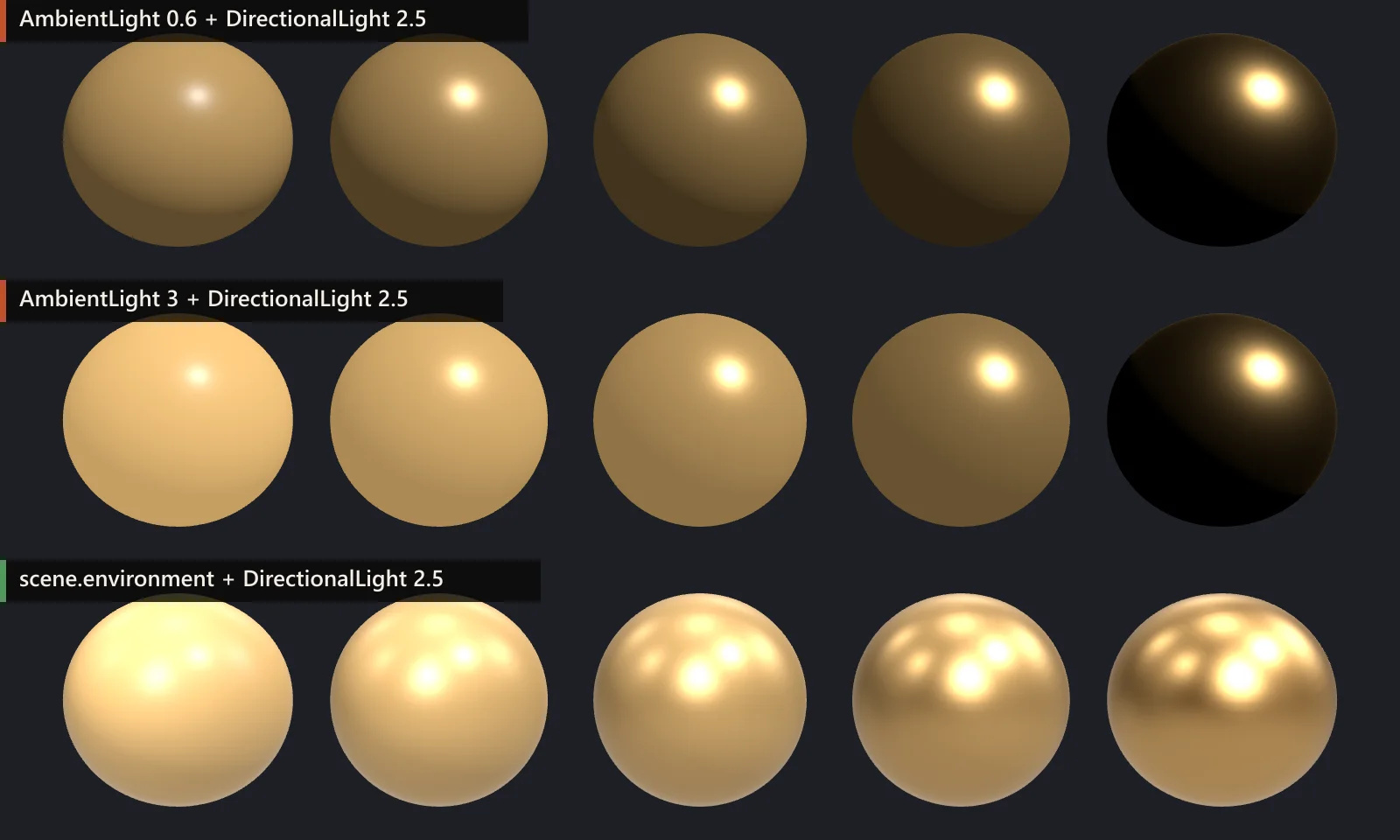
This is the most common reason for a black GLB, and it is not a bug. A PBR metal has no diffuse colour: MeshStandardMaterial sets its diffuse part to baseColor × (1 − metalness), so at metalness 1 all of its colour comes from reflections. AmbientLight and HemisphereLight only feed the diffuse part, which is why five times the ambient light changes nothing on the right-hand sphere. A DirectionalLight or PointLight is a single infinitely small point in the reflection: it gives a sharp highlight and nothing else.
A metal needs an image of its surroundings to reflect: an environment map. three.js uses a PMREM (prefiltered, mipmapped radiance environment map) so rough surfaces get blurred reflections. You do not need an HDR file; a neutral studio can be generated in code:
import { RoomEnvironment } from 'three/addons/environments/RoomEnvironment.js';

const pmrem = new THREE.PMREMGenerator(renderer);
scene.environment = pmrem.fromScene(new RoomEnvironment(), 0.04).texture;
scene.environmentIntensity = 1;   // r163+: one knob for every material using scene.environment

// Or a real HDRI (HDRLoader is called RGBELoader before r180):
// const hdr = await new HDRLoader().loadAsync('studio_1k.hdr');
// hdr.mapping = THREE.EquirectangularReflectionMapping;
// scene.environment = hdr;
scene.environment lights every standard and physical material that has no envMap of its own, and adds image-based diffuse light too, so it also helps non-metals. Keep a DirectionalLight for shadows and a clear light direction. Since r163 material.envMapIntensity scales only a material’s own envMap; for scene.environment use scene.environmentIntensity.
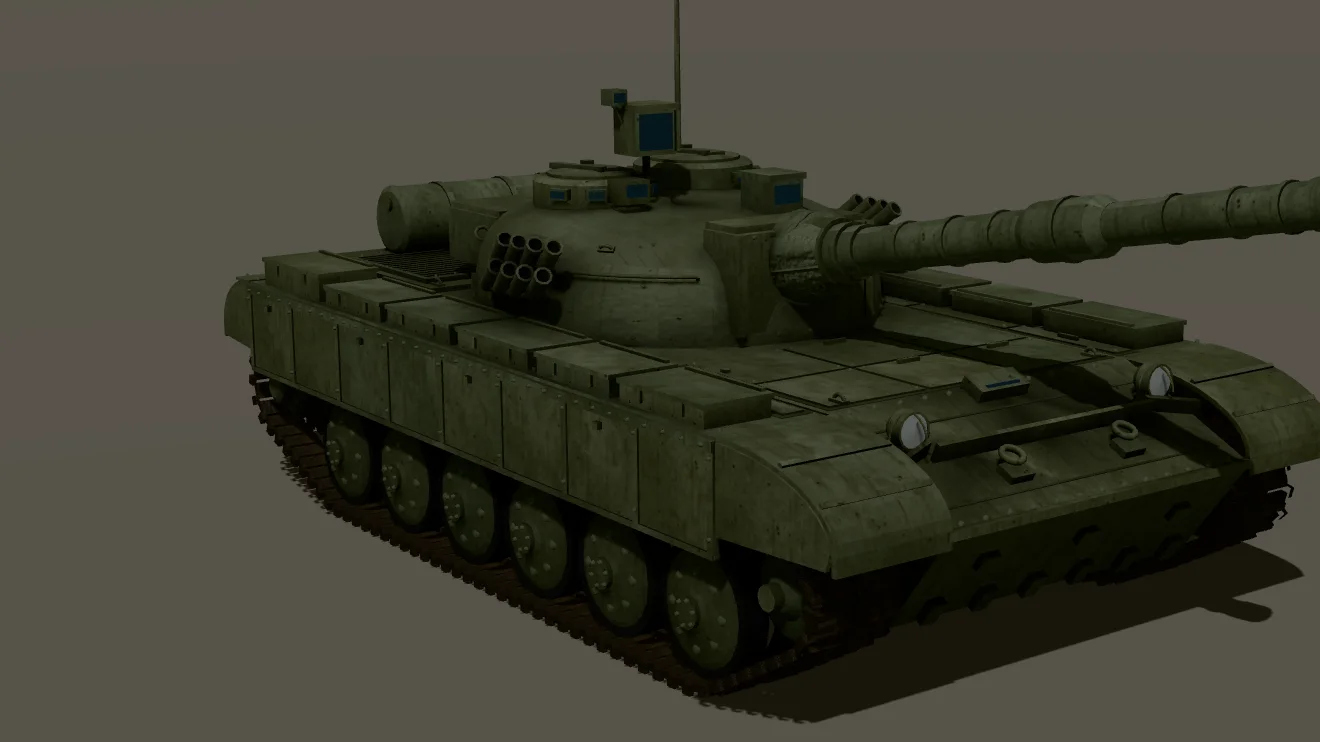
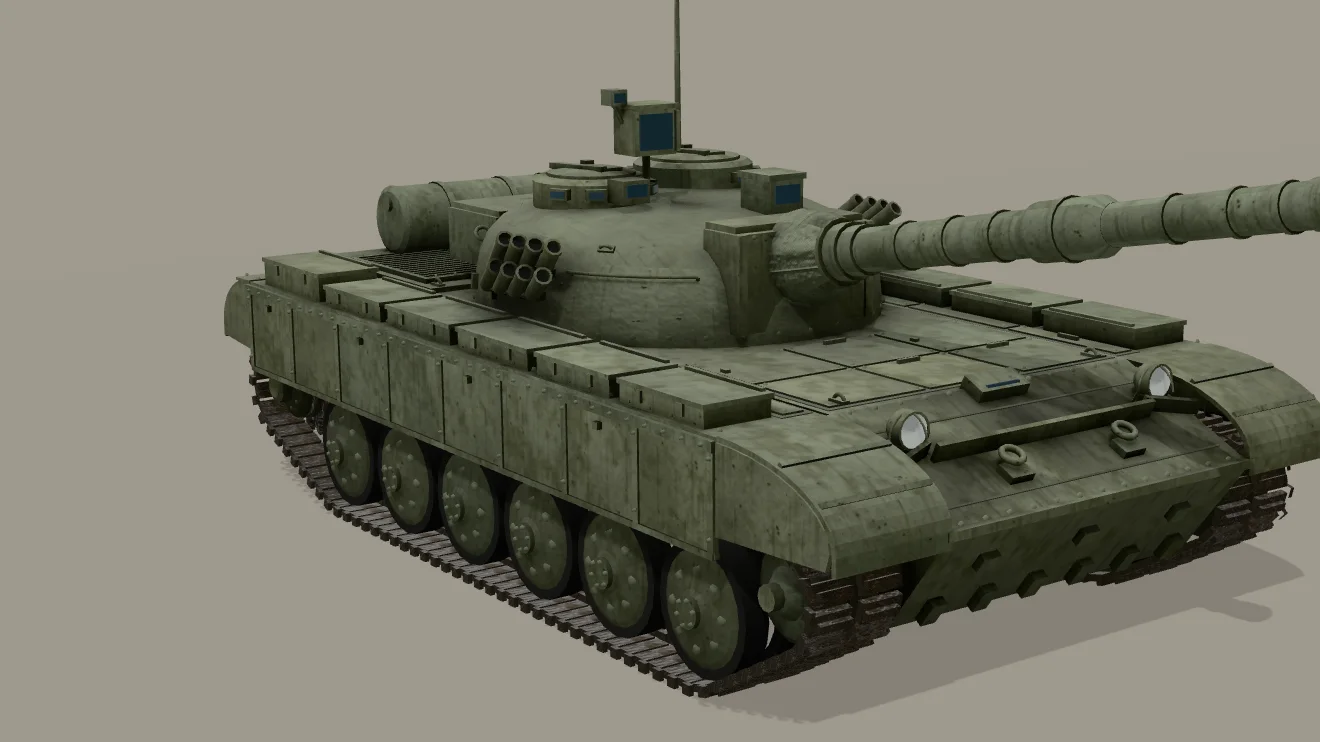
Even with correct, low metalness the tank looks muddy without an environment: its paint is metalness 0.1, and the shadowed sides get nothing except the ambient term.
No metallicFactor means metalness 1 — right for metal, wrong for paint
In glTF, metallicFactor and roughnessFactor have a default of 1.0, and GLTFLoader follows the spec (r180, GLTFLoader.js):
materialParams.metalness = metallicRoughness.metallicFactor !== undefined ? metallicRoughness.metallicFactor : 1.0;So a material with no factor and no metal/rough texture is fully metallic, and that is a valid way to describe real metal. It becomes a mistake when the surface is not metal: an exporter or converter that writes only a base colour texture for paint, plastic or fabric has, by the letter of the spec, exported chrome. A missing factor is a reason to check what the material is meant to be — not proof of an exporter bug.
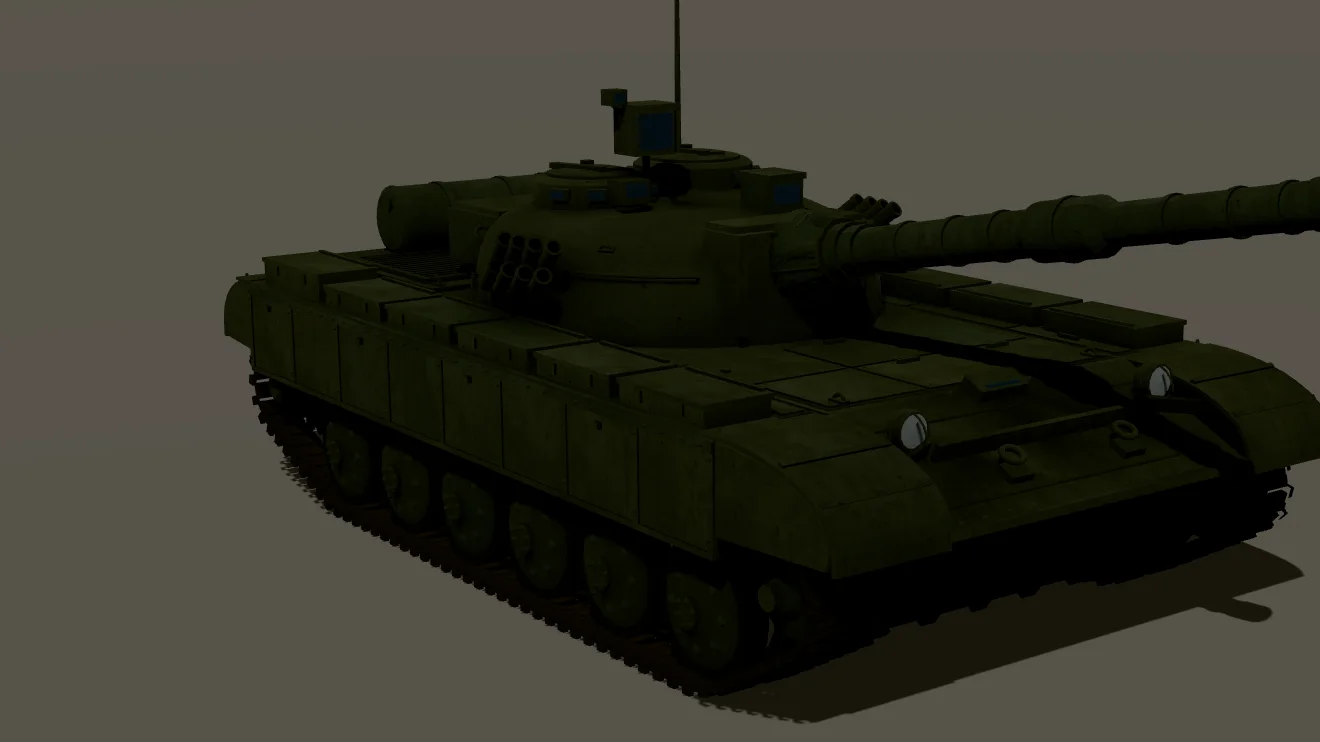
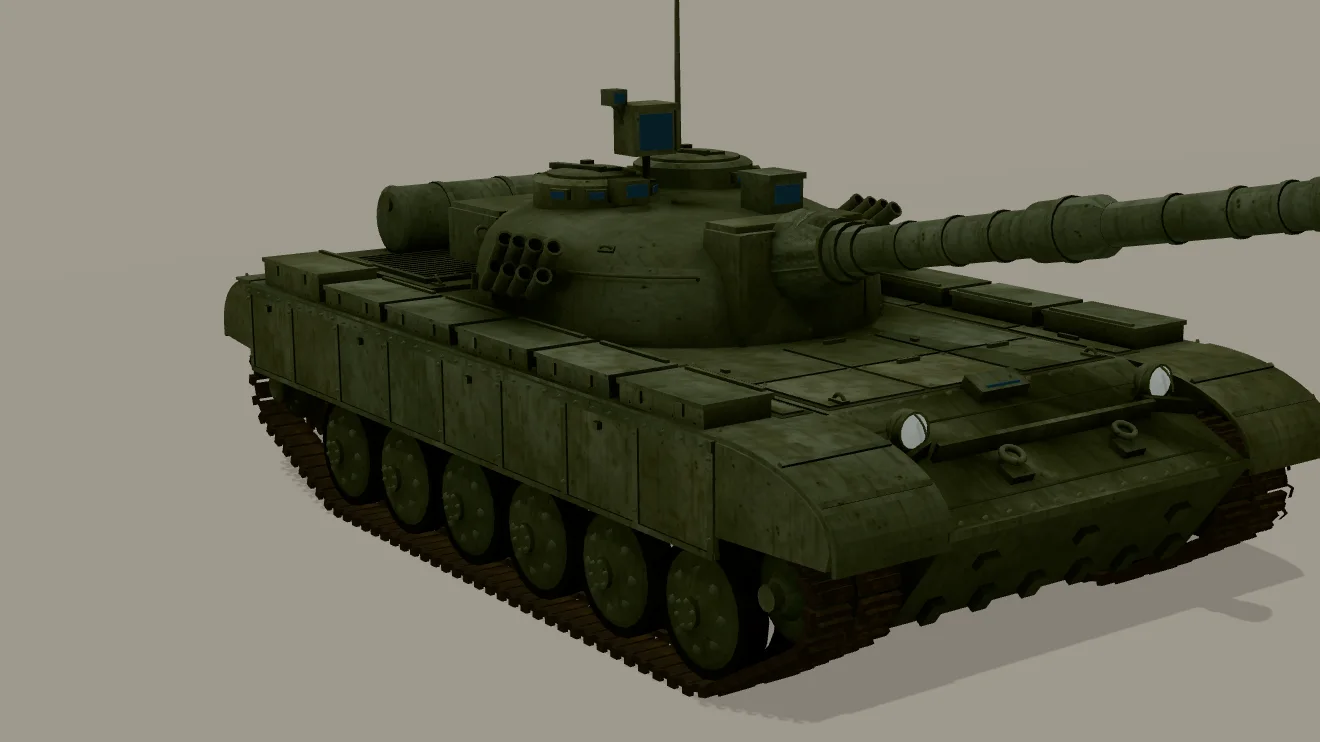
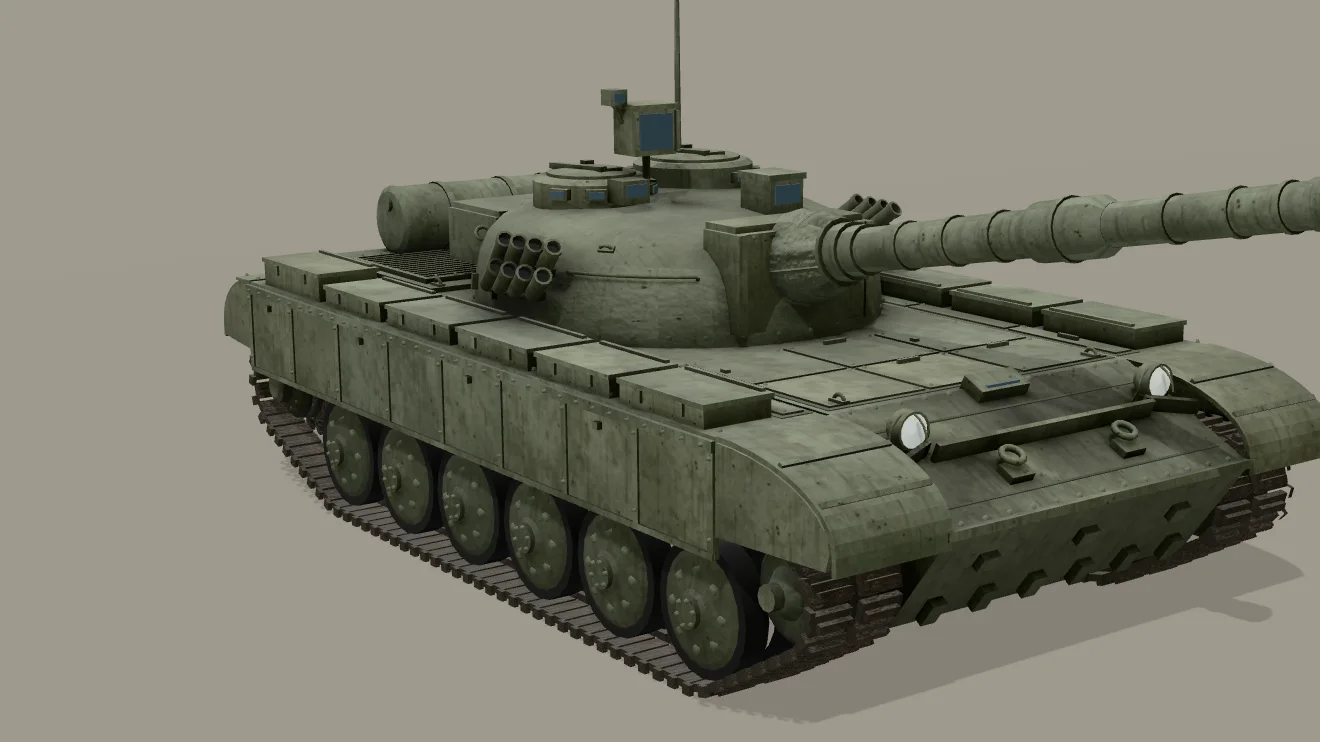
An environment map hides this problem without fixing it: the middle render is not black, but every surface reflects like metal. It also explains why the same file looks fine elsewhere: viewers such as <model-viewer> or the Khronos sample viewer light every model with an environment by default, so a wrongly metallic material reads as “a bit shiny” there and as black in a bare three.js scene.
The fix belongs in the source file: give each non-metal material Metallic 0 in your DCC tool (digital content creation software such as Blender) and export again. If you cannot re-export, patch on load — but only materials you have identified as non-metal, and leave the rest alone:
// Materials you have checked are paint, plastic, wood or fabric. Use indices if names repeat.
const NON_METAL = new Set(['t72-paint', 't72-canvas']);
const defs = gltf.parser.json.materials || [];

gltf.scene.traverse((o) => {
  if (!o.isMesh) return;
  for (const mat of Array.isArray(o.material) ? o.material : [o.material]) {
    // parser.associations is GLTFLoader internals: material -> { materials: index }
    const index = gltf.parser.associations.get(mat)?.materials;
    const def = index === undefined ? undefined : defs[index];
    if (!def || !NON_METAL.has(def.name)) continue;   // unknown or not listed: leave it
    const pbr = def.pbrMetallicRoughness || {};
    // No factor and no texture: the spec reads this as metalness 1.
    if (pbr.metallicFactor === undefined && !pbr.metallicRoughnessTexture) mat.metalness = 0;
  }
});
GLTFLoader registers the clones it makes for vertex colours or flat shading in parser.associations too. Materials your own code has cloned are not in the map and are skipped. metalness is a uniform, so changing it needs no needsUpdate.
No lights, ambient only, and why archviz still looks flat

AmbientLight(0xffffff, 1.5) only: 16.4%. Visible, but no direction and no form.A fully black model on a visible background almost always means no light reached it. Standard, physical, Lambert and Phong materials are lit; only MeshBasicMaterial (and glTF’s KHR_materials_unlit, which GLTFLoader maps to it) ignores lights. A light in the scene is not proof either: check its intensity, that it is visible, and that its layers overlap the camera’s layers (WebGLRenderer drops lights the camera’s layers exclude; light layers do not select which meshes a light affects). Quick test: scene.overrideMaterial = new THREE.MeshNormalMaterial(). If the model appears in colour, geometry and camera are fine and the problem is lighting or materials.
The next trap is fixing it with ambient light alone. Ambient light adds the same amount everywhere, so every face of a box gets the same colour and the model reads as a cut-out. For scenes and buildings, believable light comes from a strong directional light with shadows, soft light from the sky, and indirect light that varies with orientation:
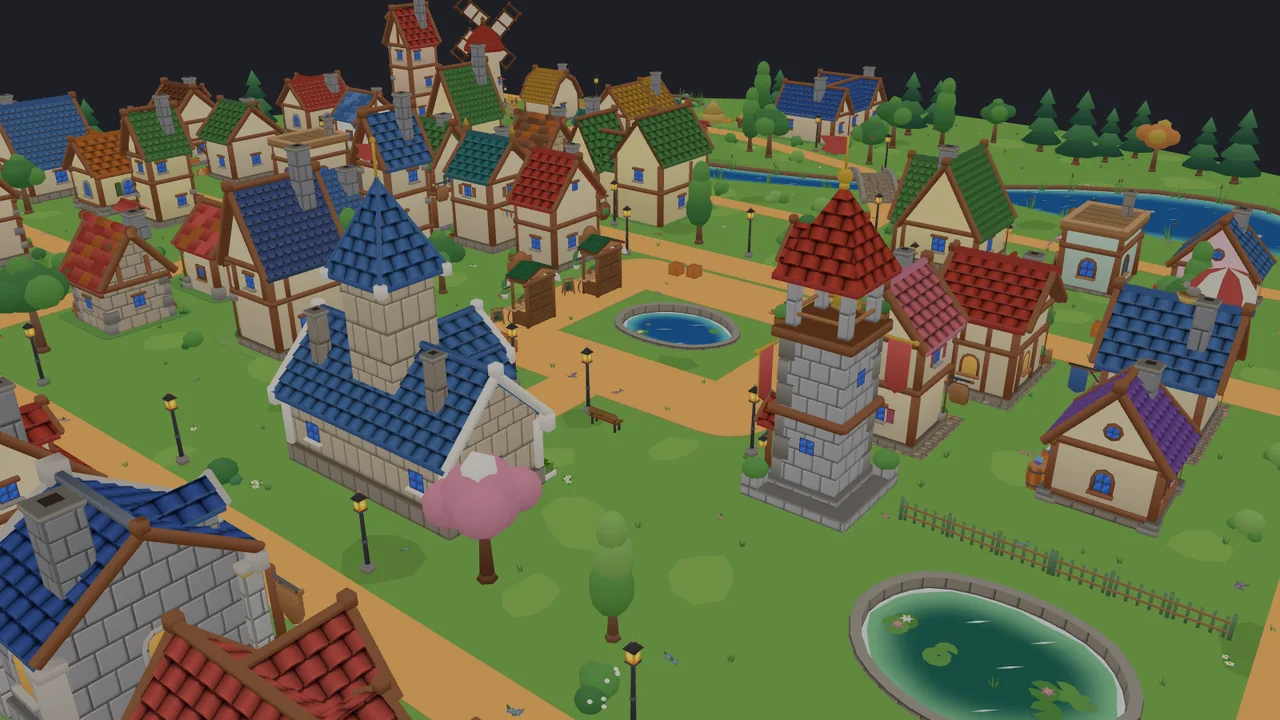
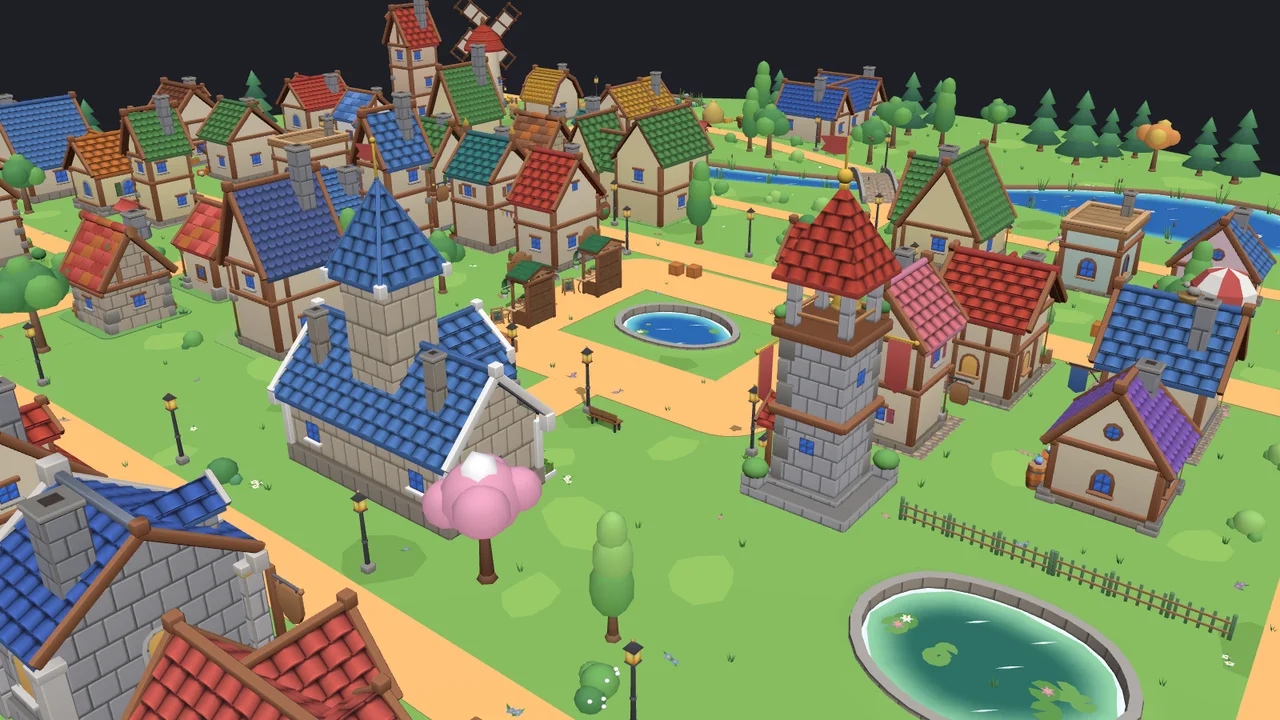
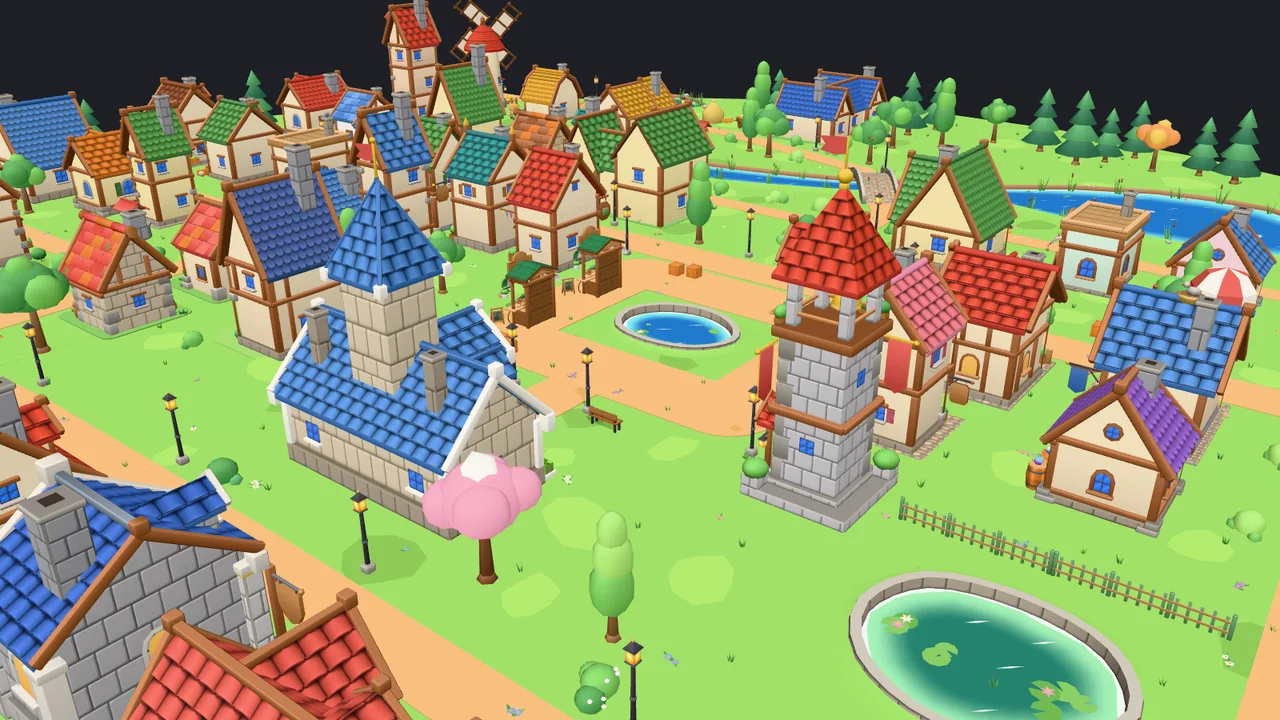
Real-time lights take you this far. The “realistic ambience” of architectural interiors is mostly baked: lightmaps or AO baked in Blender and applied as lightMap/aoMap (or pre-lit colour on an unlit material), plus screen-space AO such as SAO or GTAO for contact shadows. three.js lights do not bounce, so a room lit by a few PointLights will look darker and harsher in the corners than the same room rendered in Cycles.
Output colour conversion and the EffectComposer trap
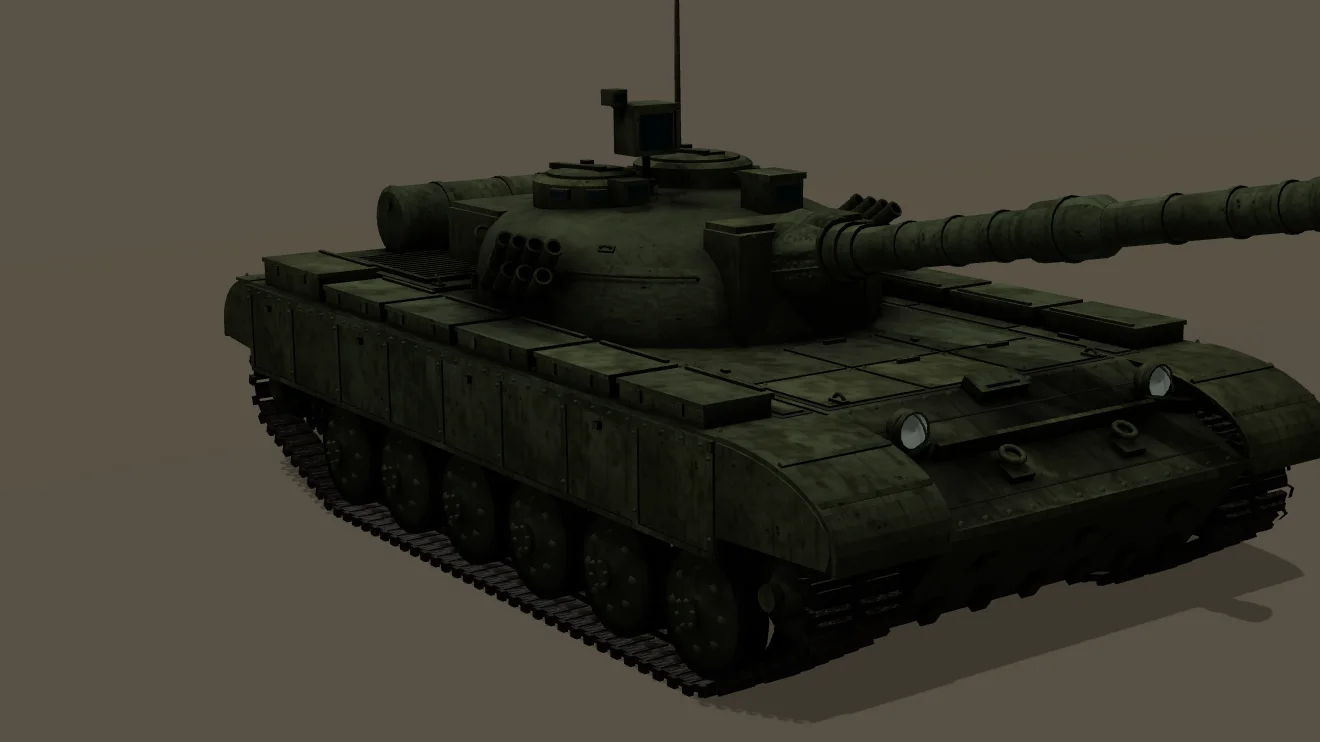
outputColorSpace = LinearSRGBColorSpace: 7.7%, 50% near-black.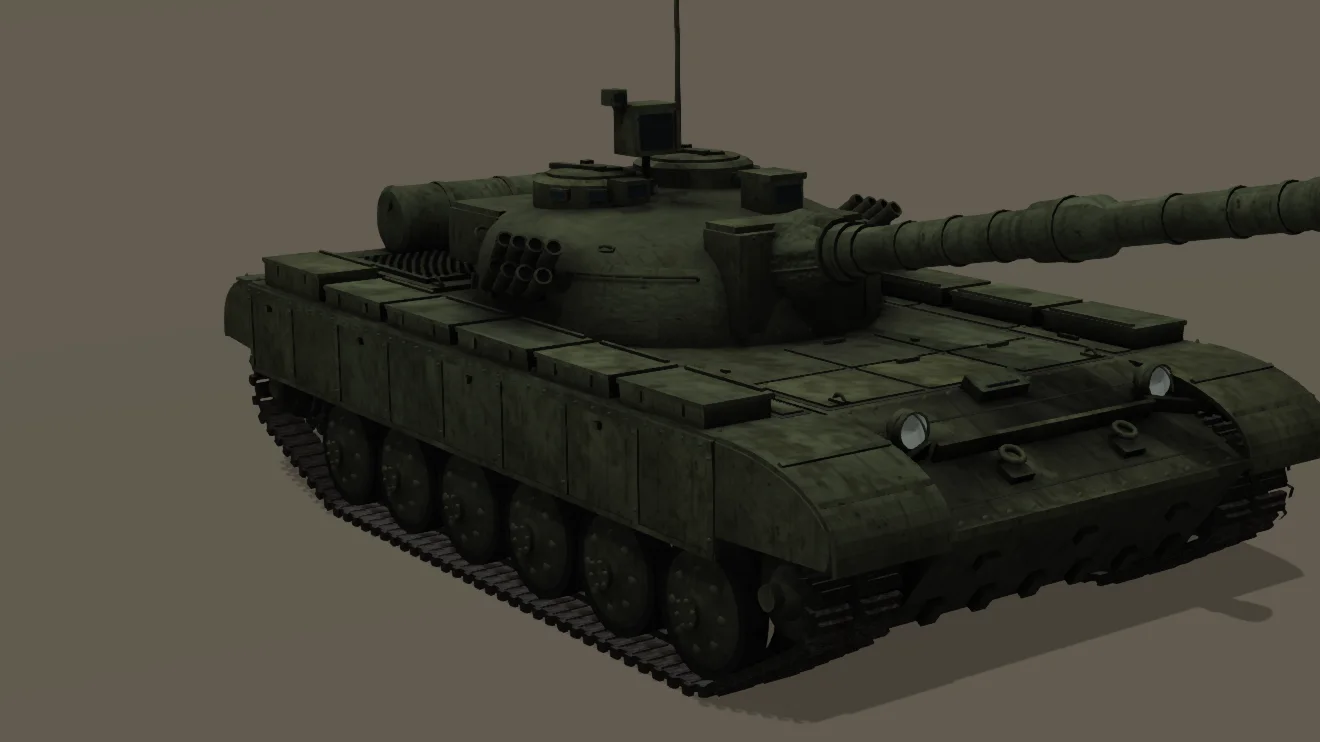
OutputPass: 11.2%.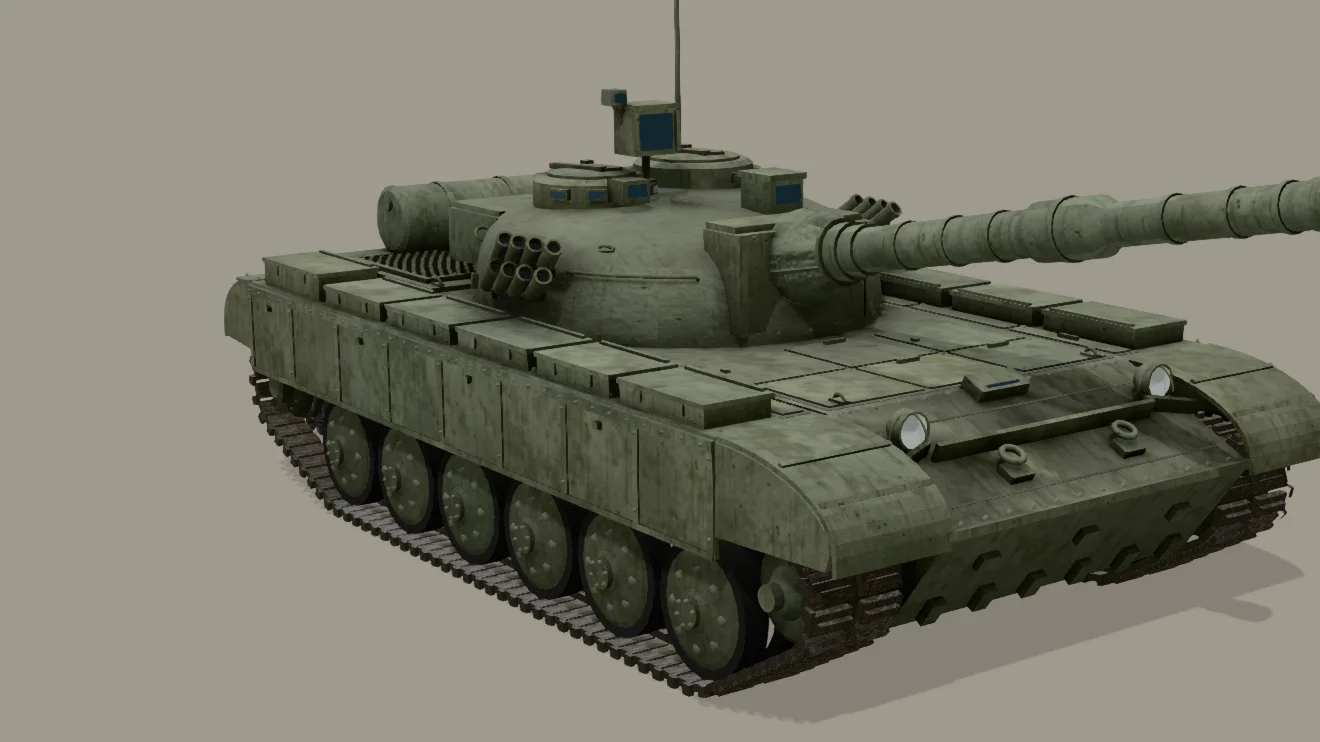
OutputPass added: 27.2%.three.js computes lighting in linear values and converts to sRGB for display at the end. Skip that conversion and the canvas receives linear numbers: a mid-grey of 0.2 that should be displayed as 0.48 is displayed as 0.2, so the image gets darker and the dark half collapses toward black. Since r152 the default is right (renderer.outputColorSpace = THREE.SRGBColorSpace); you get the dark version by setting it to linear, often from an old snippet that set outputEncoding = LinearEncoding.
Post-processing is where it still catches people. With an EffectComposer, the renderer applies its colour conversion and tone mapping only when rendering to the screen. A composer with just a RenderPass looks fine (27.1% here, identical to the reference), because that pass draws to the screen itself. Add a second pass and the RenderPass now writes linear, un-tone-mapped values into a half-float render target; something later in the chain has to convert them. With the stock passes that is OutputPass, which since r155 does both tone mapping and the sRGB conversion. The order:
import { OutputPass } from 'three/addons/postprocessing/OutputPass.js';

composer.addPass(new RenderPass(scene, camera));
composer.addPass(bloomPass);           // 1. effects that work on scene light values (bloom, SSAO, DOF)
composer.addPass(new OutputPass());    // 2. tone mapping + sRGB conversion
composer.addPass(fxaaPass);            // 3. effects that need display colours, e.g. FXAA
This matches the official FXAA example, which adds RenderPass, OutputPass, then FXAA. Custom passes that do their own conversion change the picture; the rule is that the conversion happens exactly once, after the light-value effects.
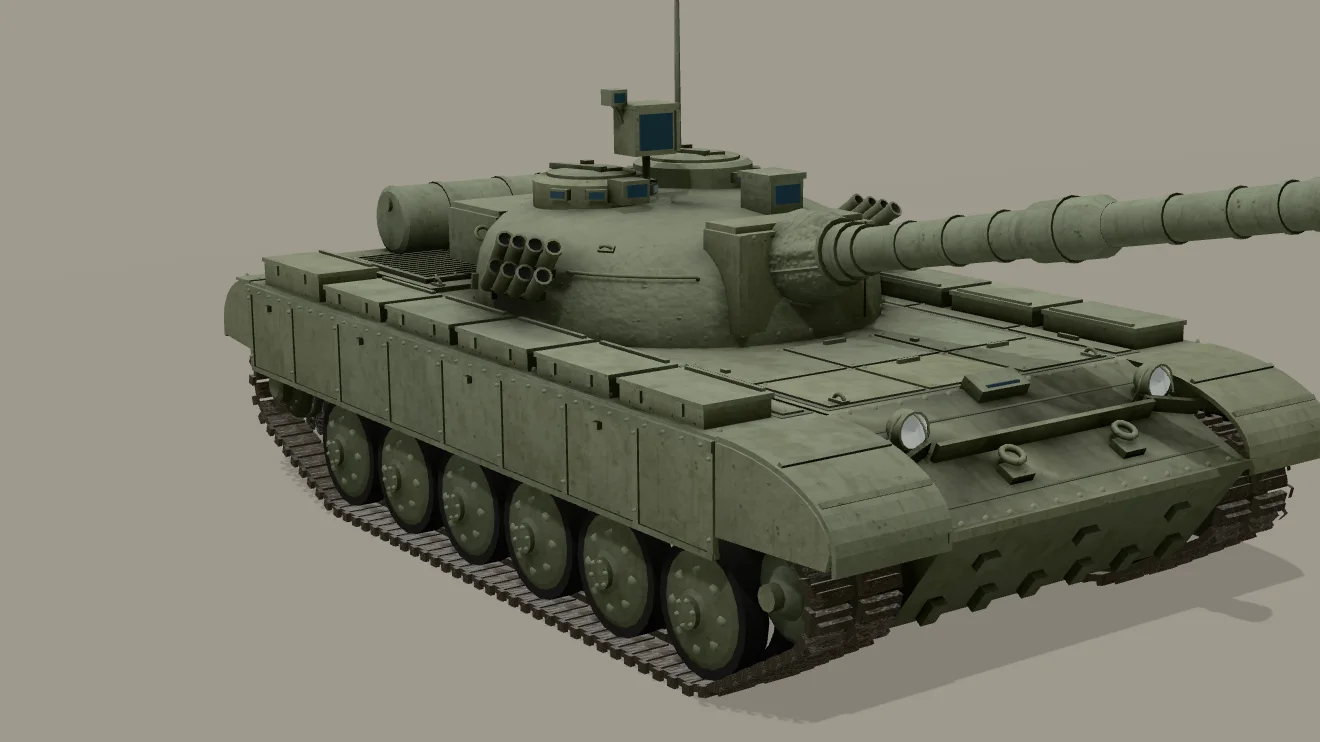
colorSpace: 30.3%, slightly lighter than the reference.The opposite mistake looks different: GLTFLoader tags base colour and emissive textures as sRGB, but a texture you load with TextureLoader starts as NoColorSpace. Use it as map without texture.colorSpace = THREE.SRGBColorSpace and colours look pale and washed out, not dark. Normal, roughness/metal and AO maps must stay non-colour data.
Dark after a three.js update: the r155 light units
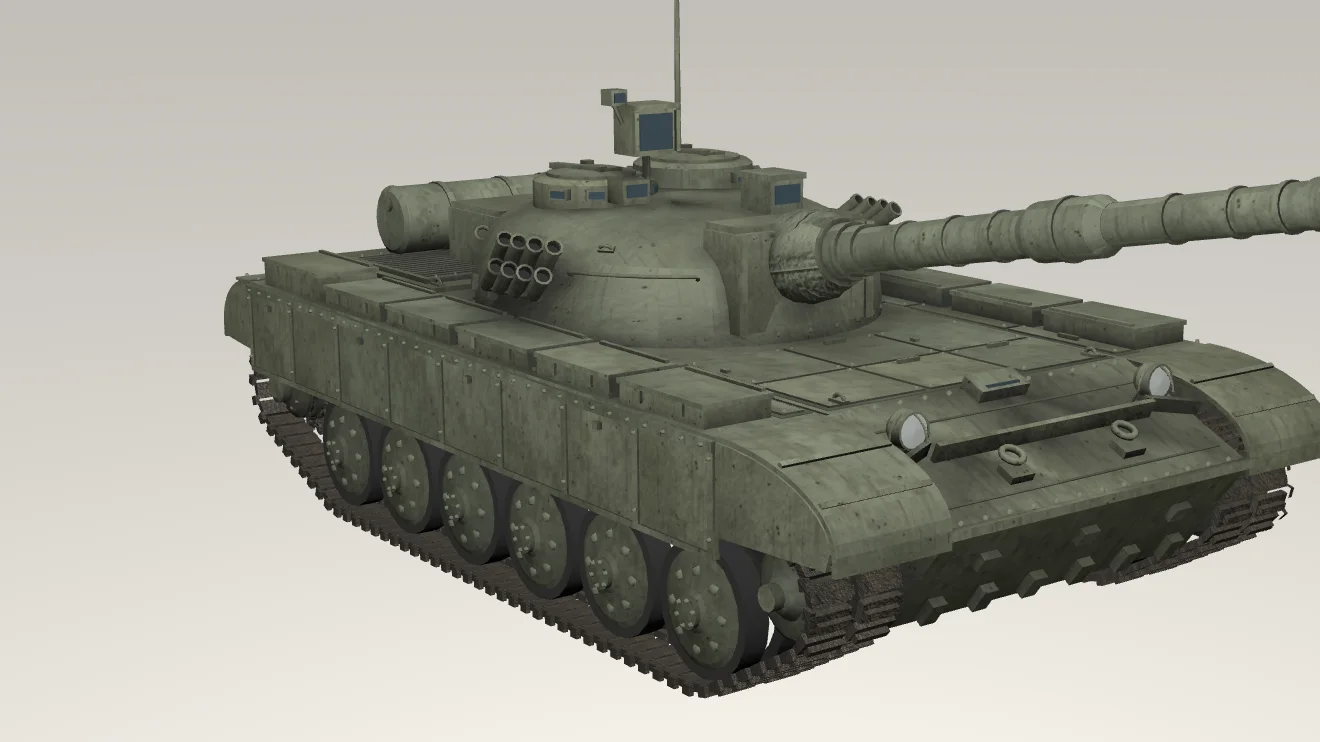
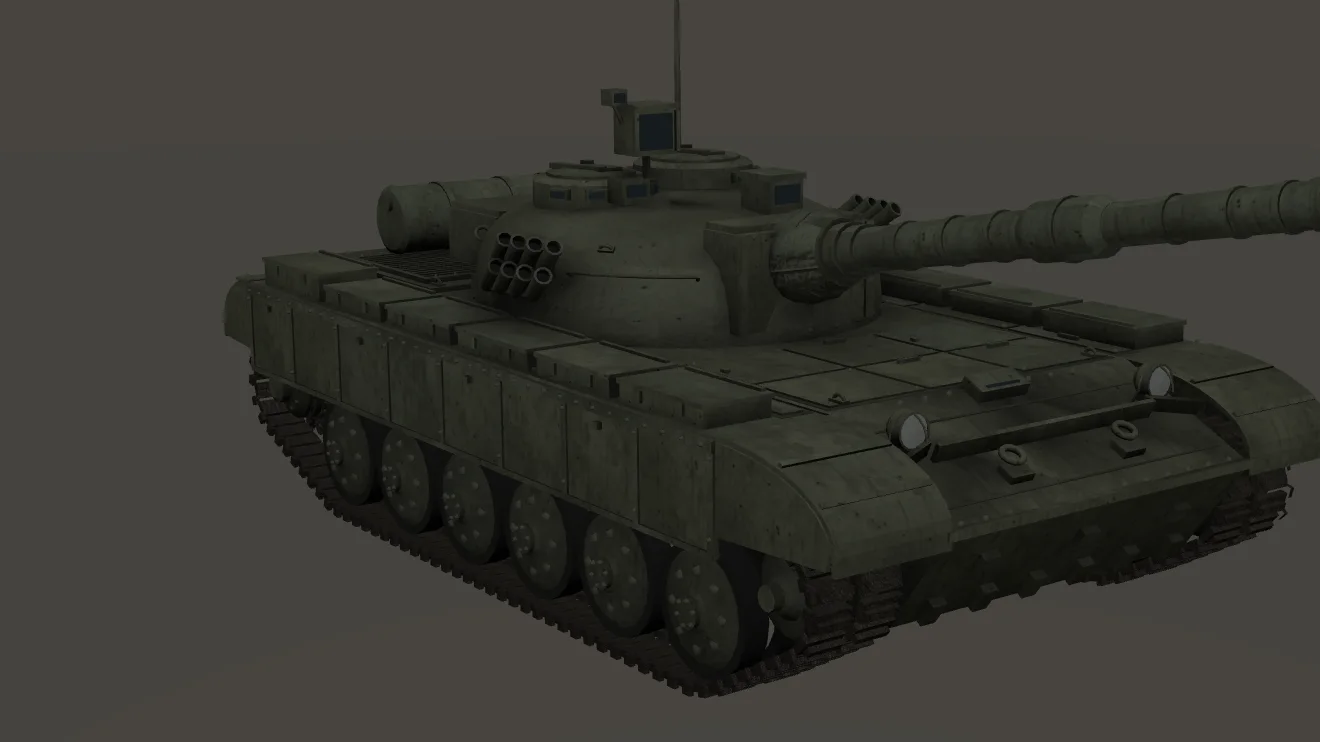
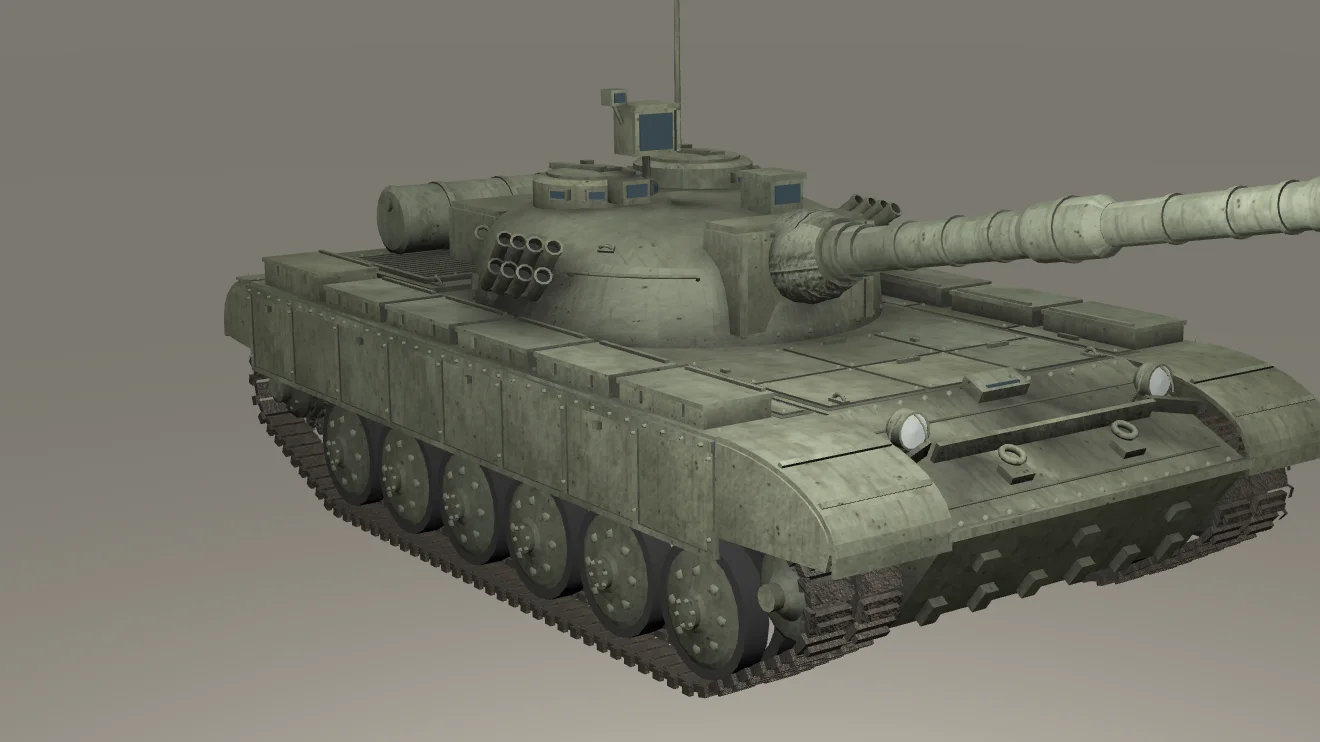
The code behind these renders is identical — an AmbientLight of 0.4, a DirectionalLight of 1 and a PointLight of 1, the numbers in most tutorials before 2023 — and the model is the same file. Nothing is broken; the units changed.
Until r154 three.js used “legacy” lighting by default. The renderer multiplied the colour of every light by π (WebGLLights: scaleFactor = useLegacyLights ? Math.PI : 1), and a PointLight or SpotLight with distance = 0 did not fade with distance. In r155 useLegacyLights became false by default and deprecated; current releases no longer have it. Intensities are now physical: no π, and point and spot lights fall off with the inverse square of distance (decay = 2).
| Light | Old code | r155 and later | Notes |
|---|---|---|---|
Ambient, Hemisphere, Directional | I | I × π | Exact: the π the renderer used to add |
Point, Spot with distance = 0 | I | I × π × d² | Approximate: matches the old brightness only at distance d |
Lights from a glTF (KHR_lights_punctual) | — | as loaded | GLTFLoader copies the file’s candela / lux values and sets decay = 2 |
The point-light row needs care. The old light did not fade; the new one fades with 1/d². No single multiplier keeps the old image at every distance: π × d² restores the old brightness at the one distance d you pick, measured in scene units — metres only if your scene is modelled in metres. Here we used the light’s distance to the tank’s centre, 5.6 units, so π·31; surfaces nearer the light are now brighter than before and farther ones darker. Often the better fix is to re-tune point lights by eye, or to switch them to directional or environment lighting.
If lights come from Blender, the exporter’s Lighting Mode decides the numbers: Standard (the default) writes physical units, Unitless writes values for engines without exposure control. When imported lights are far too bright or too dim, check that option before multiplying.
Later releases changed less. r181 reworked indirect specular for PBR materials (the migration guide notes rough materials get slightly brighter) and r183 changed how RoomEnvironment lighting looks. Our reference scene measured 27.1% in r180 and 29.5% in r187: visible side by side, nothing that turns a model black. The forum thread “three.js update makes assets black” from this summer ended with the poster finding an old line in their own code that modified the glTF materials.
Tone mapping and exposure
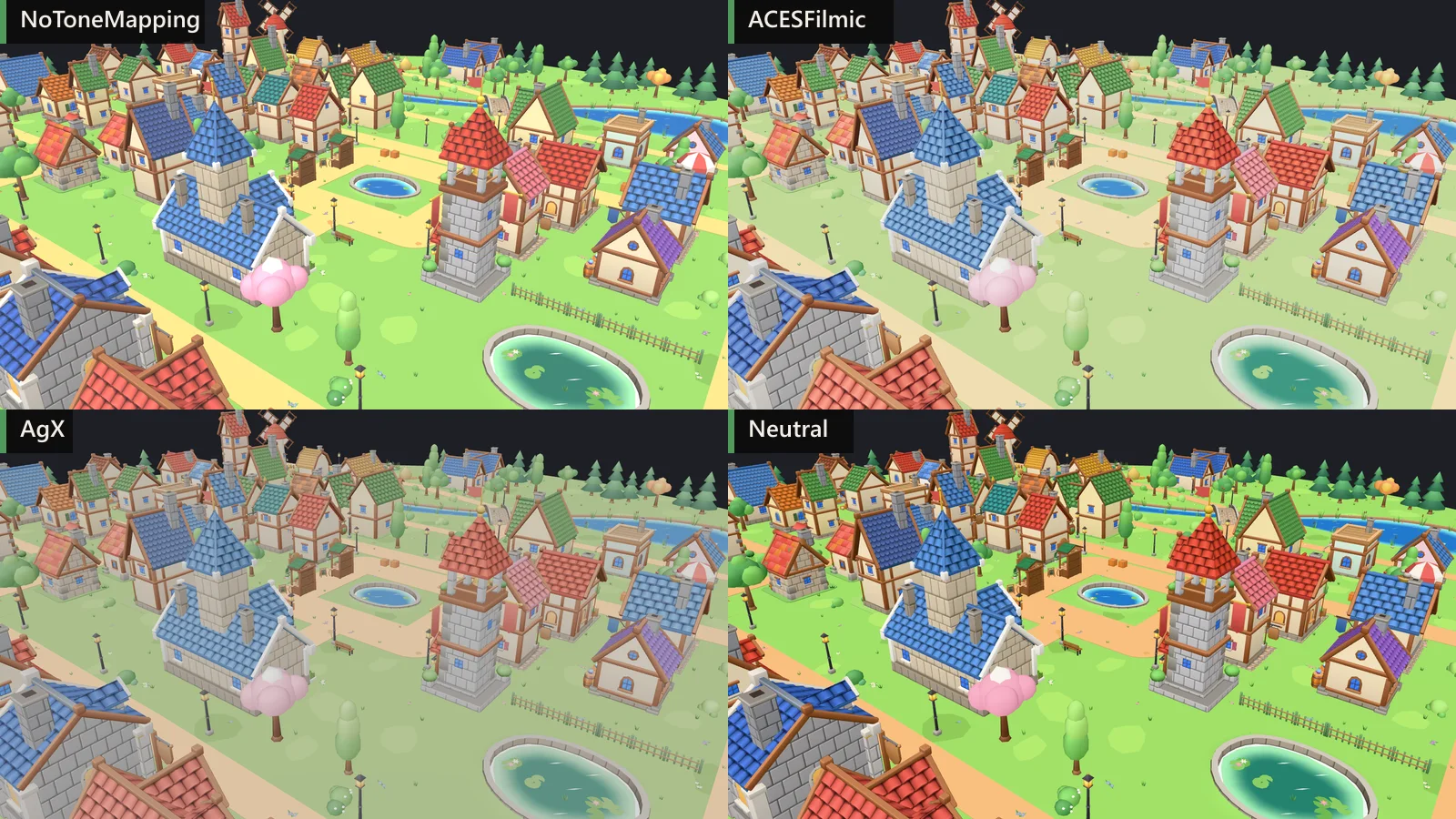
renderer.toneMapping, exposure 1. ACES and AgX lift and desaturate the colours; Neutral keeps them close to the textures; without tone mapping the brightest grass and paths clip.| renderer.toneMapping | Tank | Village |
|---|---|---|
No (the default) | 34.6% | 68% |
ACESFilmic | 33.5% | 69.1% |
Ag | 37.3% | 63.5% |
Neutral | 27.1% | 63.4% |
Ag, exposure 1.25 | — | 67.2% |
Ag, exposure 0.25 | 16.6% | — |
Tone mapping squeezes the unbounded light values of a scene into the 0–1 range of the screen. In our test, at exposure 1, switching between these four standard operators moved the tank between 27.1% and 37.3% mean brightness — about 10 points, a clearly visible difference — and none of them turned it into a black silhouette. What they change most is character: ACES Filmic and AgX roll off highlights and desaturate, which flatters photographic scenes and dulls stylised ones; Neutral (Khronos PBR Neutral) is designed to keep base colours recognisable, which suits product and asset previews.
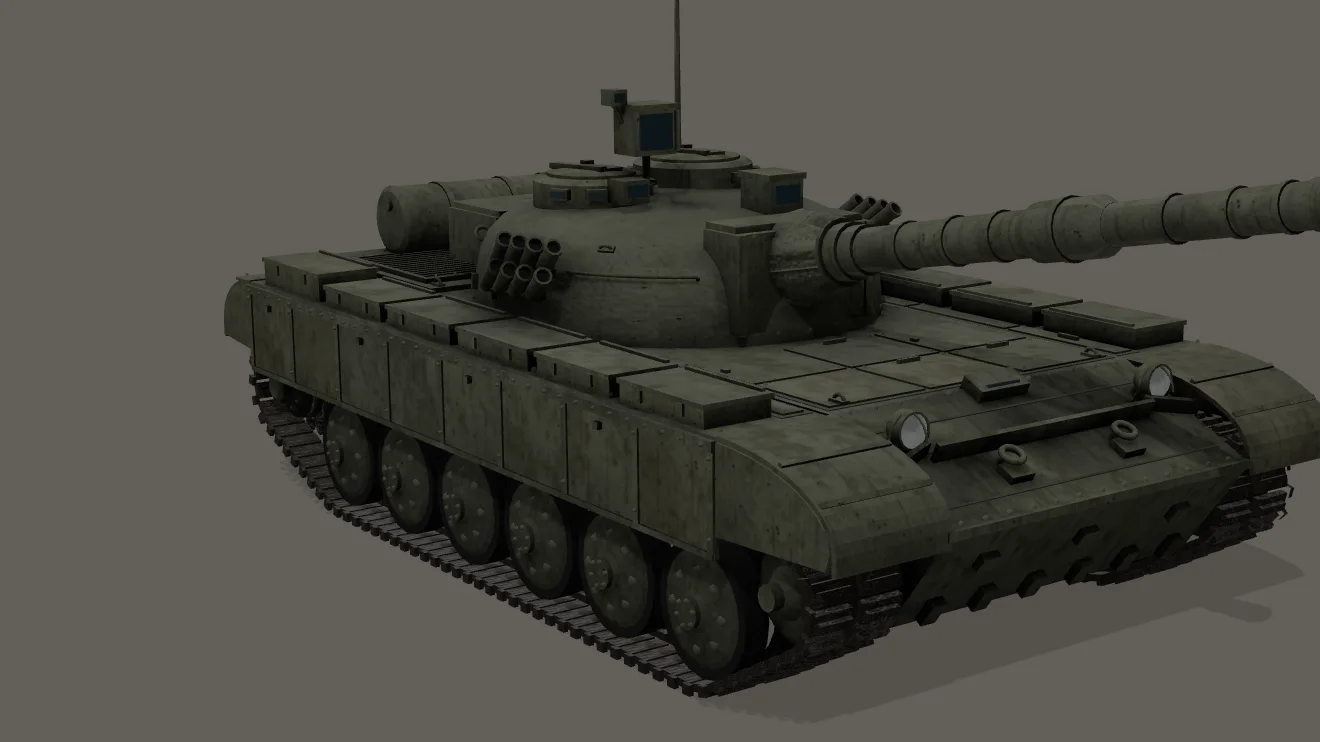
toneMappingExposure = 0.25: 16.6%, 14% near-black.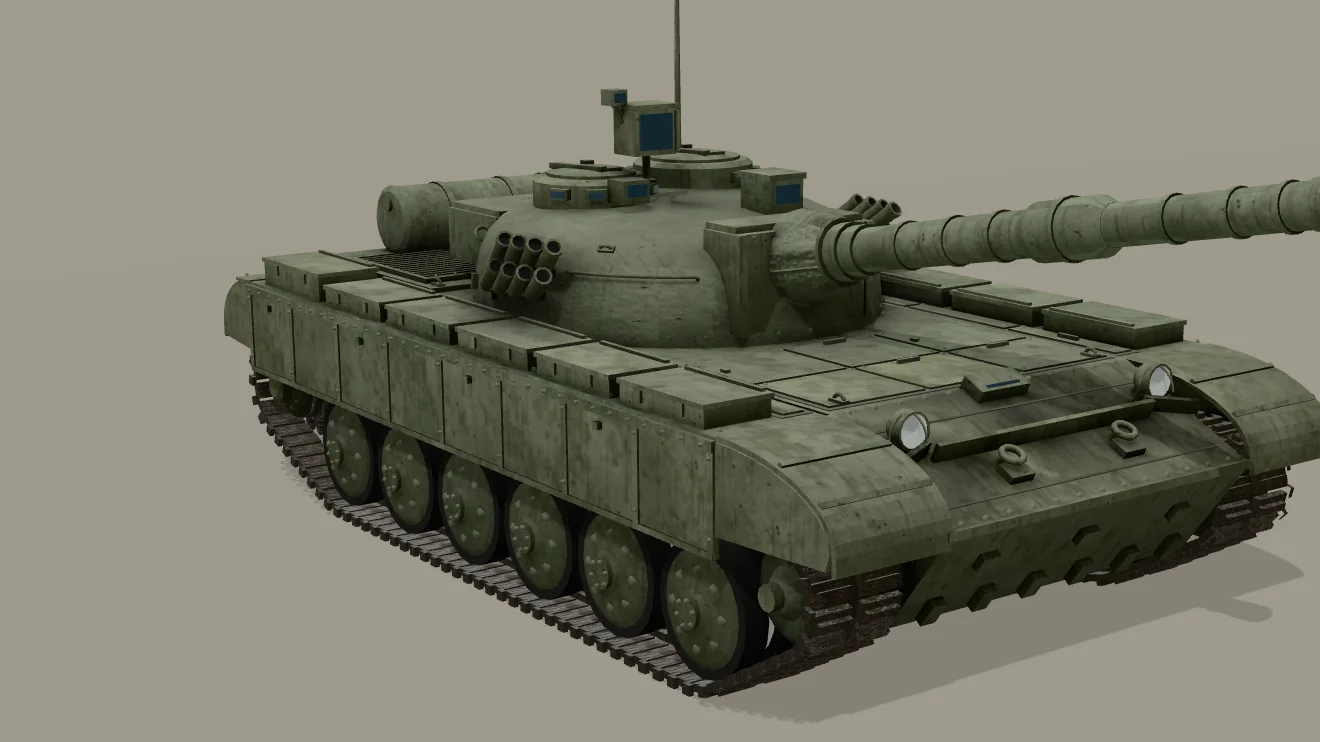
Exposure is different: it multiplies every pixel before the tone curve, so a low toneMappingExposure darkens everything, and a very low one can make a model look black. It has no effect with NoToneMapping. A custom tone-mapping function or a broken output chain can also darken the image. If AgX looks too grey, raise exposure rather than adding lights — 1.25 brought the village to 67.2%. With a composer, tone mapping is applied by OutputPass.
Extensions: spec-gloss files and glass
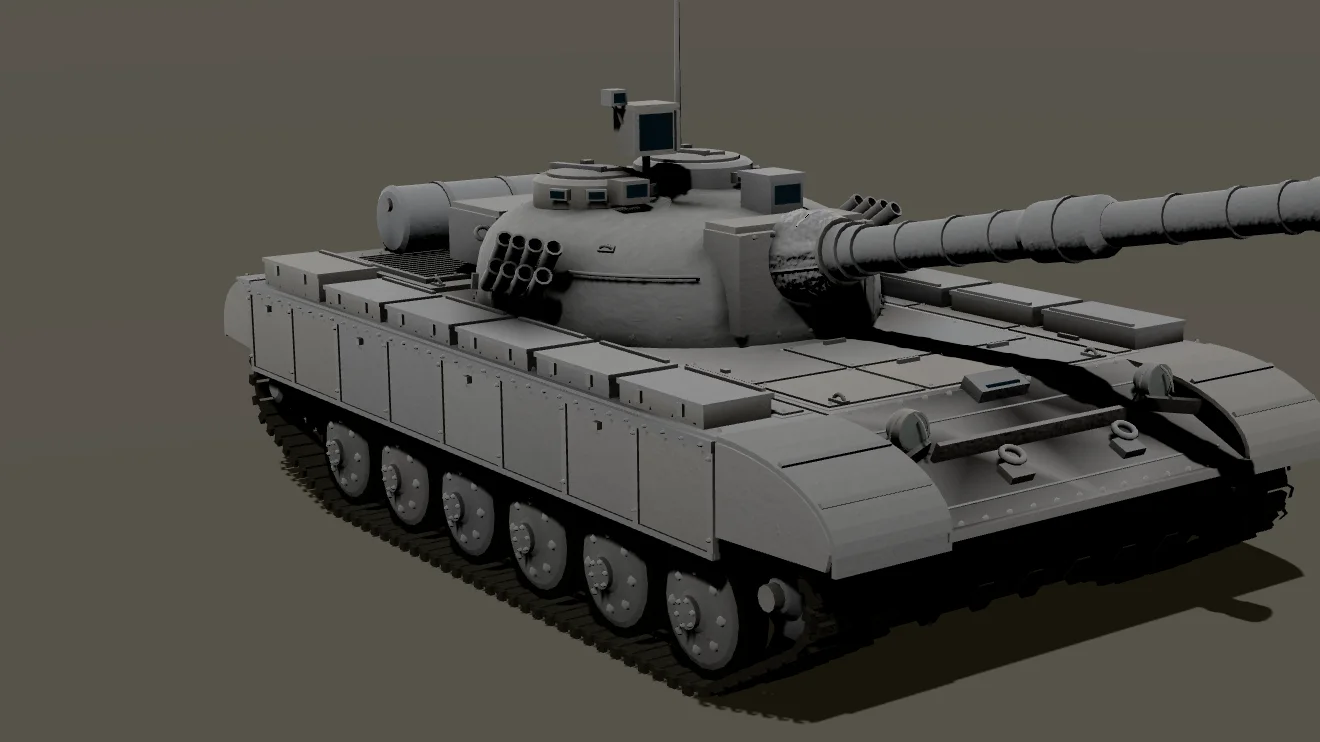
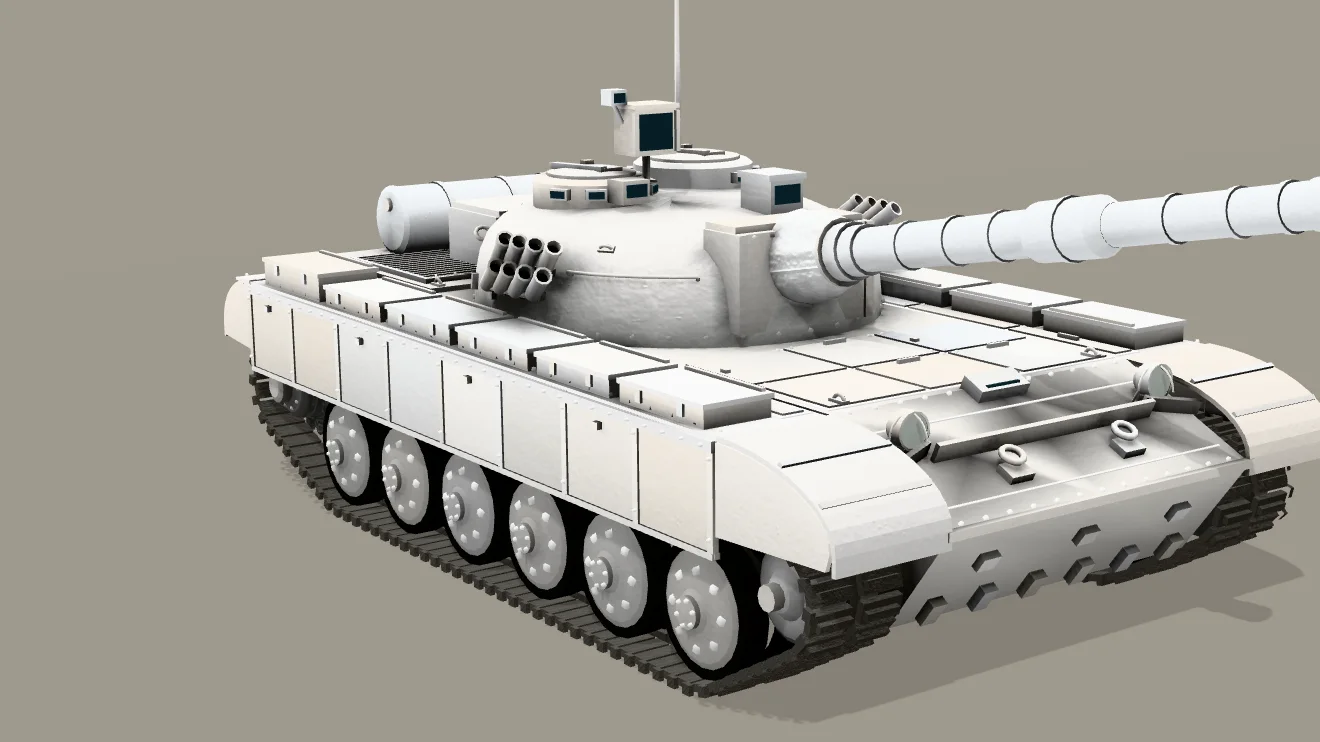
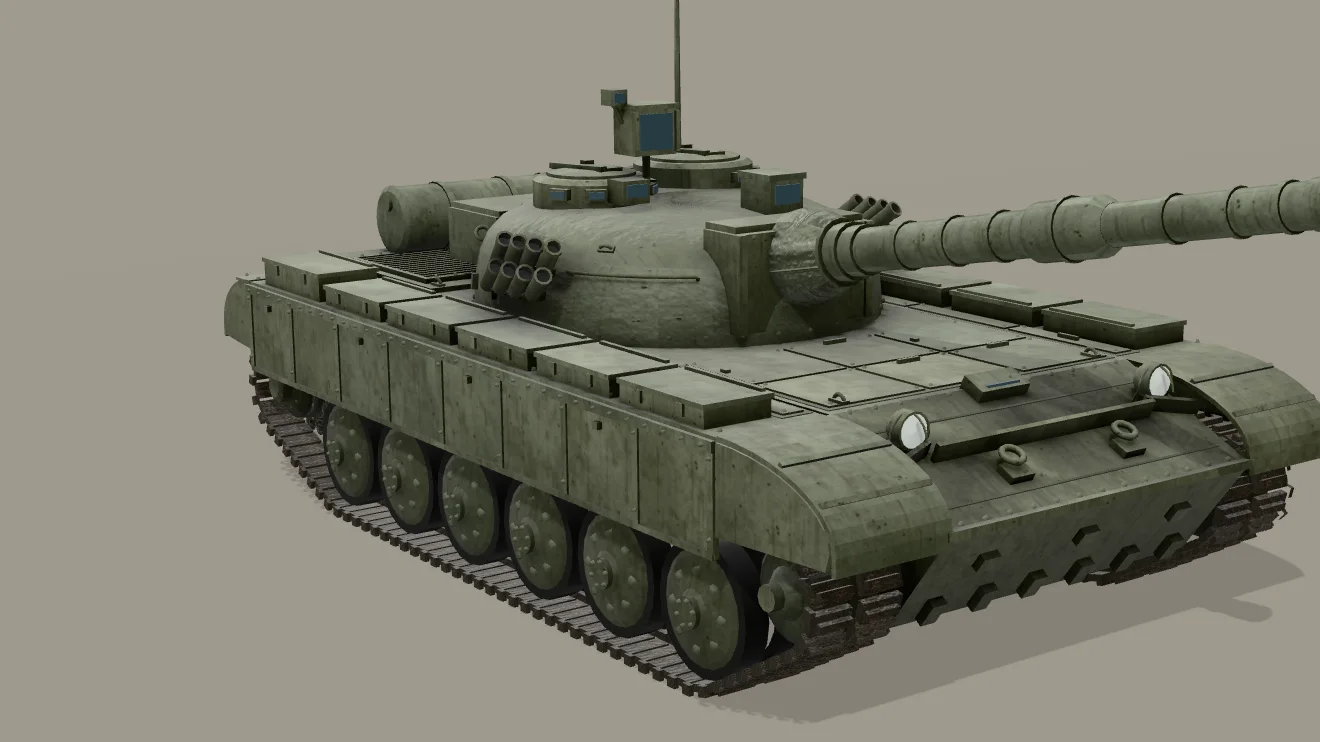
gltf-transform metalrough: 31.2%.KHR_materials_pbrSpecularGlossiness was an alternative PBR workflow in early glTF; Khronos archived it and GLTFLoader dropped support in r147. Files exported years ago, from some photogrammetry tools, or from older libraries still use it. Such a material usually has an empty pbrMetallicRoughness block, so three.js builds it from defaults: white, metalness 1, roughness 1, no textures. The diffuse texture lives only inside the extension and is never loaded.
The loader does not tell you. In r180 GLTFLoader warns about an unknown extension only if the file lists it in extensionsRequired; listed only in extensionsUsed, it is skipped silently. Convert the file once:
npx @gltf-transform/cli metalrough model.glb model-metalrough.glb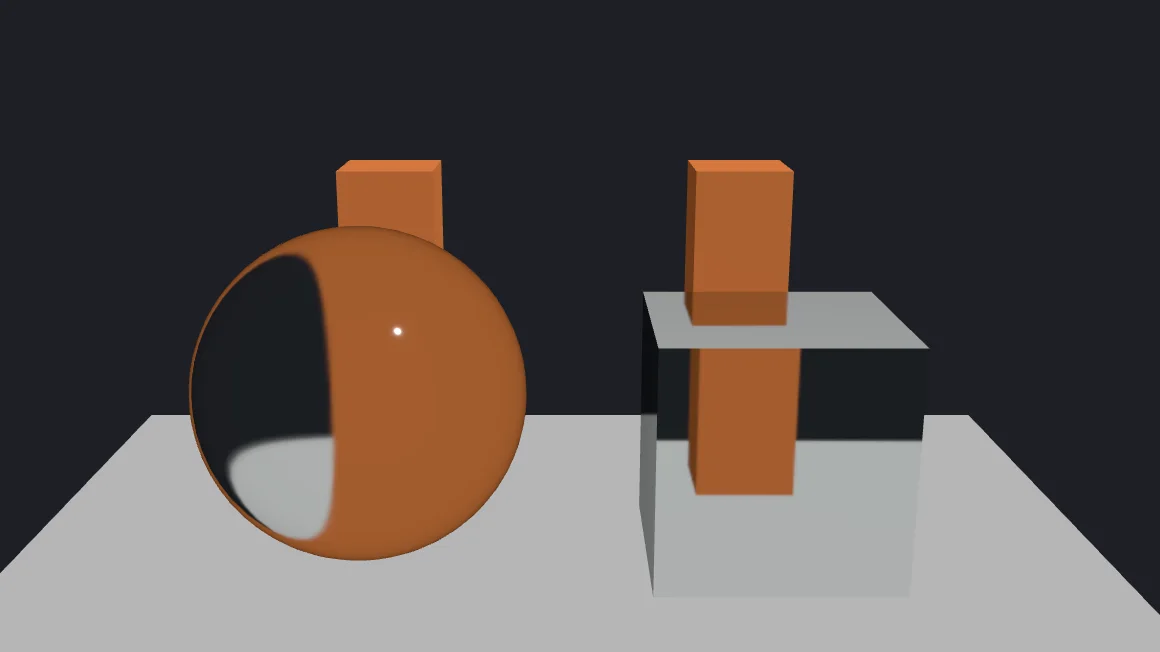
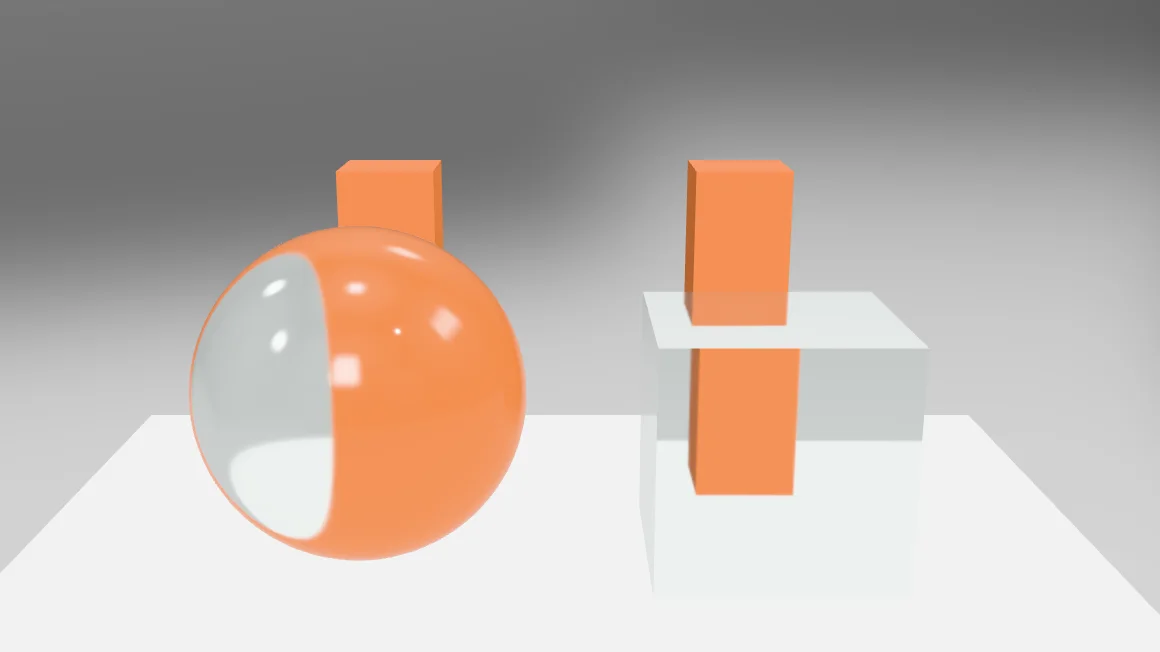
Glass from KHR_materials_transmission becomes a MeshPhysicalMaterial with transmission. three.js renders the opaque objects into a texture and refracts it through the glass, so whatever is behind — including a black background — is what the glass shows. Give it an environment and something to refract; transmission also costs an extra render pass per frame.
Other material extensions change brightness less: KHR_materials_emissive_strength can make lamps much brighter than older loaders showed; KHR_materials_specular with a low specular colour makes surfaces duller; KHR_materials_unlit turns lighting off.
Vertex colours: a dark COLOR_0
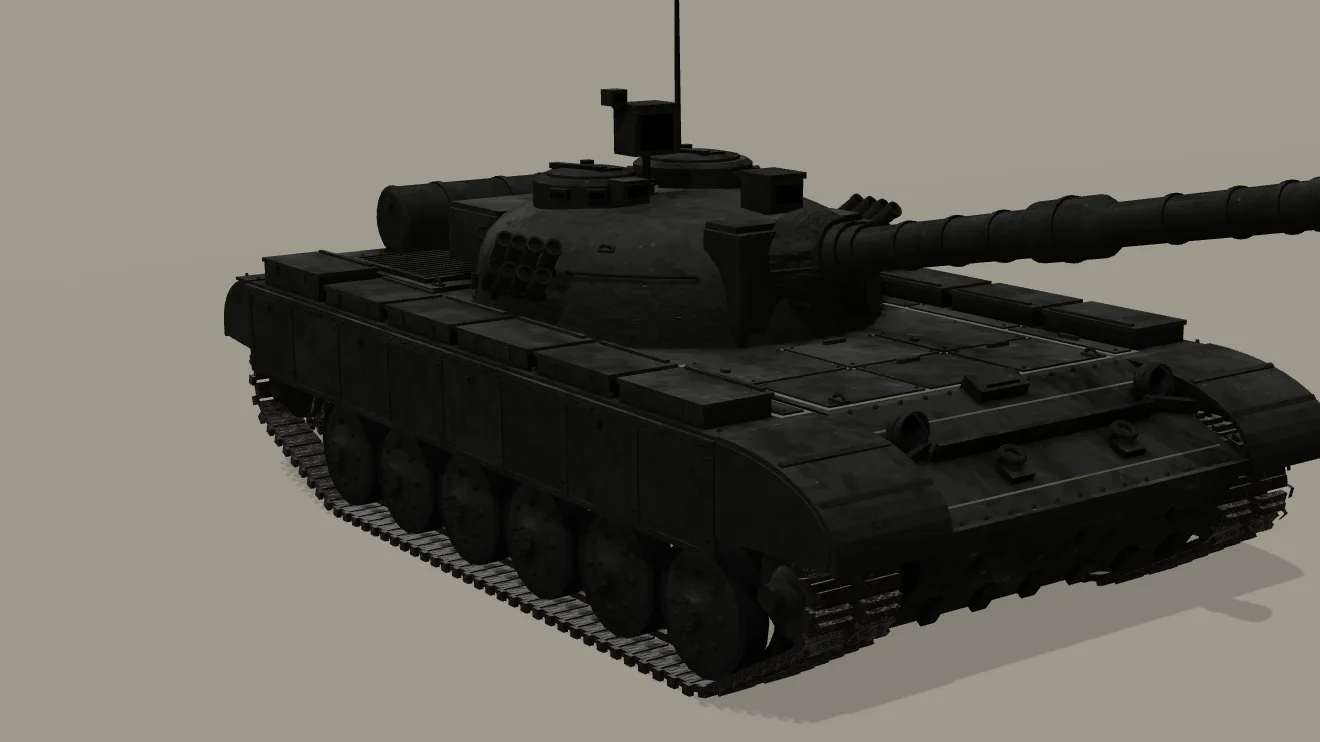
COLOR_0 ≈ 0.04 in the file: 8.4%, 42% near-black.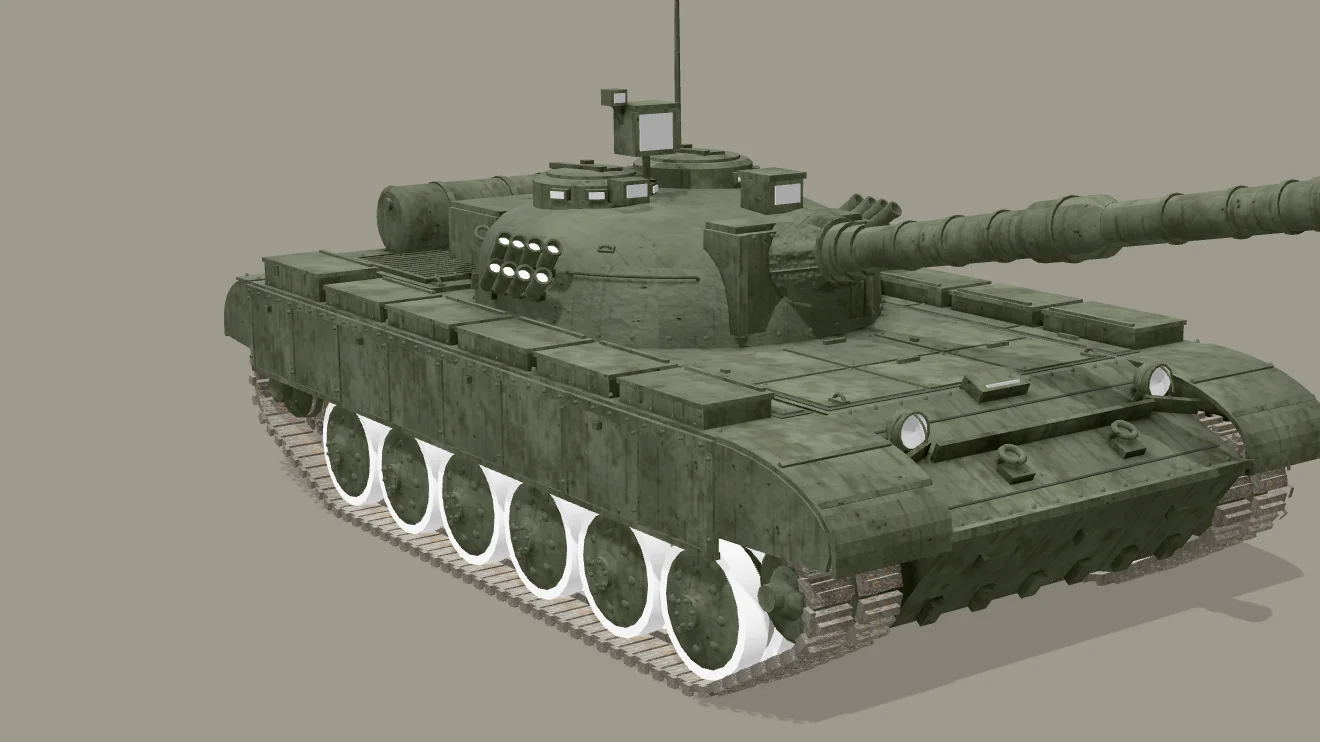
vertexColors = false: 38.2% — and the rubber, which COLOR_0 darkens on purpose, turns white.If a primitive has a COLOR_0 attribute, GLTFLoader uses a material with vertexColors = true, and the base colour is multiplied by it. A colour attribute painted as a mask, left over from a bake or a CAD import, or filled with black by a tool dims the whole mesh. It looks right in Blender because Blender’s material ignores that attribute unless it is wired in.
Turning vertex colours off is a quick test. Because vertexColors selects a different shader program, a material that has already been rendered needs a recompile:
material.vertexColors = false;
material.needsUpdate = true;   // without this the old program keeps using COLOR_0
It is a test, not always a fix: our T-72 uses COLOR_0 to make its tyres dark, and they turned white. Fix it at export: Blender’s glTF exporter has Data → Mesh → Use Vertex Color with Material, Active, Name and None; Material exports only colours the material uses. Or call geometry.deleteAttribute('color') on meshes that should not have it, then set needsUpdate on their materials.
Normals and face orientation
Two different properties hide behind “inverted normals”, and they produce different symptoms.
- Face orientation is set by the order of each triangle’s vertices (its winding). three.js uses it for back-face culling: with the default
side = FrontSide, triangles wound the wrong way are not drawn, so surfaces disappear from some angles. Blender’s Face Orientation overlay shows exactly this (blue front, red back); Mesh → Normals → Recalculate Outside fixes closed meshes. UseDoubleSidefor genuinely thin surfaces, not as a fix for wrong winding. - Vertex normals (the
NORMALattribute, custom split normals, the normal map) drive lighting. If they point inward, the surface is still drawn but lit from the wrong side. A mesh can have correct, blue faces in the overlay and still carry wrong custom normals;DoubleSidedoes not reveal it either.
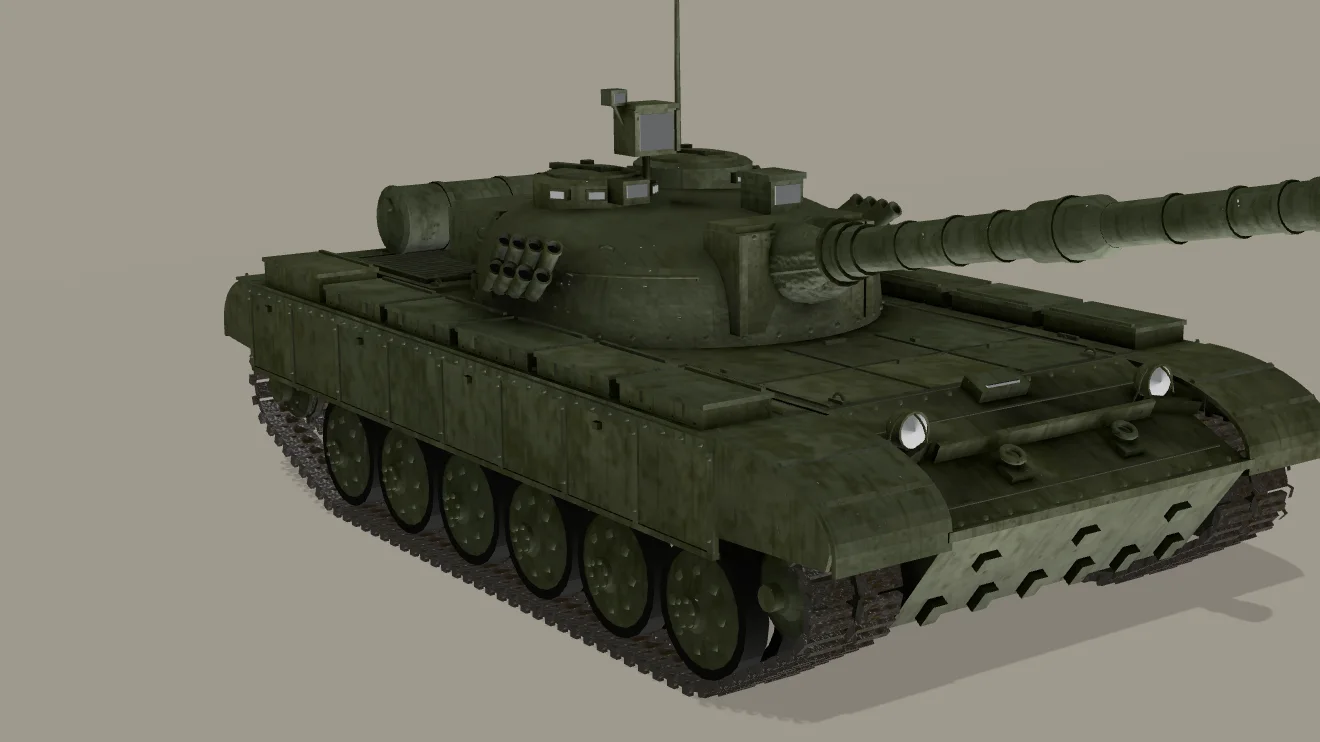
NORMAL negated, winding untouched: 19.2%. Sunlit sides go dark.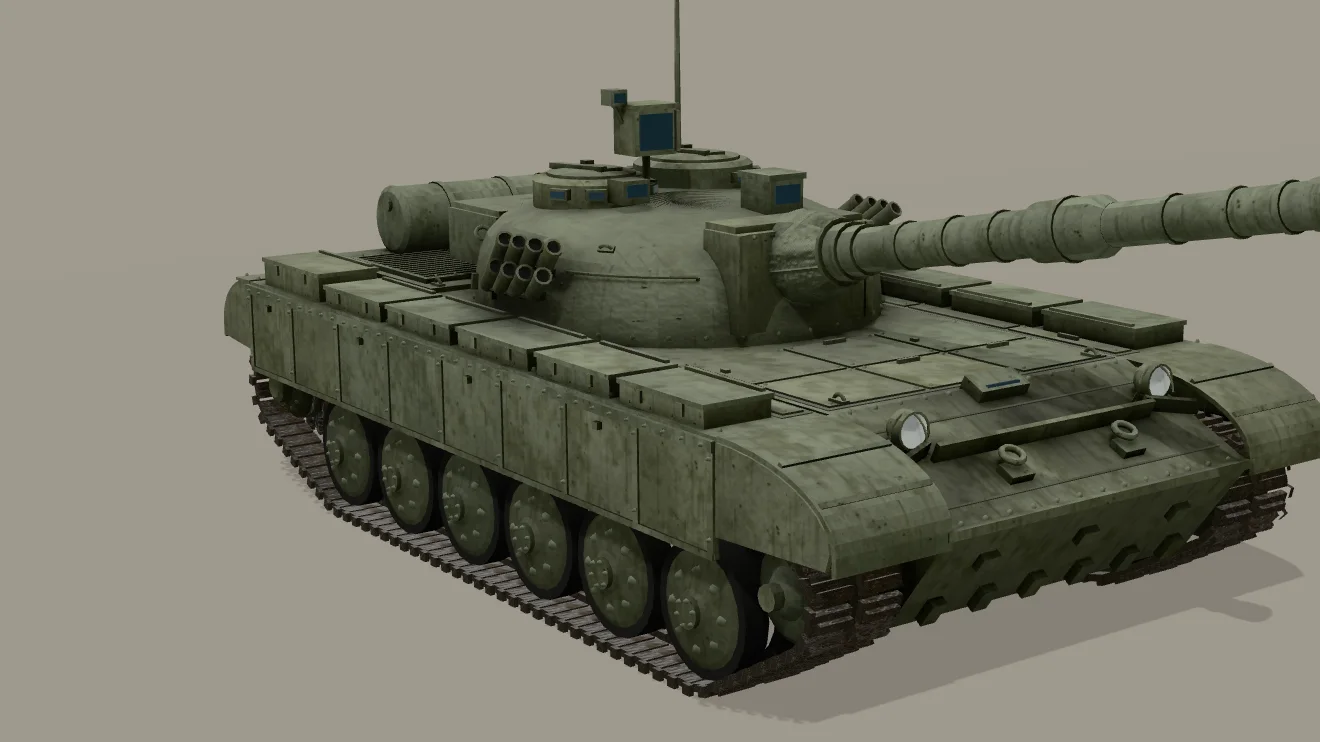
geometry.computeVertexNormals() on load: 27% (reference 27.1%).Our test introduced the second kind: vertex normals negated, triangle order unchanged. computeVertexNormals() rebuilds normals from the winding, which fixes exactly that defect here. It averages normals across shared vertices, so on meshes that share vertices across hard edges it softens them; the lasting fix is in the DCC — in Blender, Mesh → Normals → Reset Vectors or clearing custom split normals data, then checking the normal map’s green-channel convention (glTF expects OpenGL, +Y).
Missing normals are not a dark case: when a primitive has no NORMAL, GLTFLoader enables flatShading on its material, as the spec requires, and you get faceted shading.
Version-specific: CSM in three.js r186 turns metals black
Applies only to three.js r186 with the CSM (cascaded shadow maps) addon. Other releases are not affected.
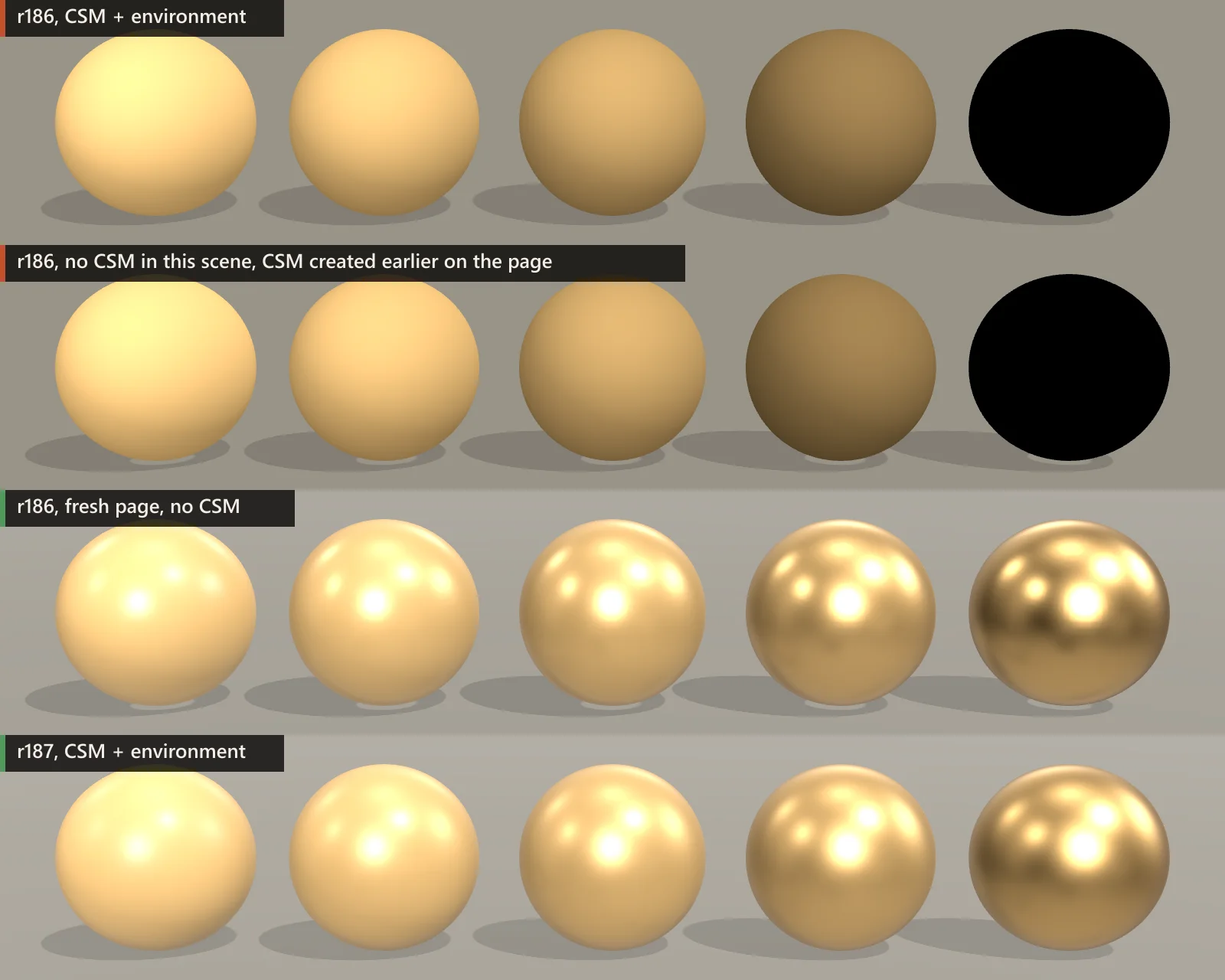
In September a forum user reported that after upgrading to r186, every glTF asset with metalness turned black with CSM enabled; the thread found no cause. We reproduced it, and the cause is in the source. r186 added multi-scattering energy compensation, and the core shader chunk lights_fragment_begin now starts by filling material.dfg from a lookup texture. CSM replaces that chunk with its own copy, and in r186 the copy predates the change, so material.dfg is never written. On our GPU the specular terms that depend on it came out as zero: metals, which are all specular, go black, and every highlight disappears. r187 updated CSMShader.js; the core chunk of r181, r183, r184 and r185 has no such line.
Row 2 shows what makes it hard to debug: CSM installs its chunk into the global THREE.ShaderChunk, so once a CSM exists on the page, every lit material compiled afterwards uses the patched chunk, even in a scene without CSM. Measured over the whole five-sphere row, 21% of the pixels were near-black with CSM and 21% without it after a CSM had been created — that is the fully black metal sphere, one of five — against 0% on a fresh page. (The row’s mean brightness, 52% against 72.2%, includes the four lighter spheres.)
Fix: upgrade to r187 or later. If you are pinned to r186, copy examples/jsm/csm/CSMShader.js from r187 into your project and import CSM against it.
A checker you can paste
Most of these faults can be spotted from the loaded gltf object, the renderer and the scene. The function below returns one line per finding, in two levels: ✖ for settings that are wrong by definition, ? for heuristics you need to judge against your model. It took at most 12.6 ms on the tank (about 30,000 triangles in 88 primitives); it runs on the CPU, so use it while debugging, not every frame. It reads loader internals (gltf.parser.json, parser.extensions, parser.plugins) that can change between releases.
// glbDoctor(gltf, renderer, scene): lists likely reasons a loaded GLB renders black or too dark.
// Call it after the model is in the scene and lights/environment are set up. Debug tool, not per frame.
// ✖ = a setting that is wrong by definition.  ? = a heuristic: check whether it applies to your model.
// Reads gltf.parser.json, gltf.parser.extensions and gltf.parser.plugins, which are GLTFLoader internals.
import * as THREE from 'three';

export function glbDoctor(gltf, renderer, scene) {
  const issues = new Map();   // message -> { level, names }
  const say = (level, msg, who) => {
    const it = issues.get(msg) || { level, who: new Set() };
    if (who) it.who.add(who);
    issues.set(msg, it);
  };
  const json = gltf.parser.json;
  const label = (mat, mesh) => mat.name || mesh.name || 'unnamed material';

  // Renderer and scene
  if (renderer.outputColorSpace !== THREE.SRGBColorSpace)
    say('✖', 'renderer.outputColorSpace is ' + renderer.outputColorSpace + ': the canvas receives linear values and looks darker');
  if (renderer.toneMapping !== THREE.NoToneMapping && renderer.toneMappingExposure < 0.5)
    say('?', 'toneMappingExposure is ' + renderer.toneMappingExposure + ': exposure scales every pixel before tone mapping');
  let lights = 0;
  scene.traverseVisible((o) => { if (o.isLight && o.intensity > 0) lights++; });
  if (!lights && !scene.environment)
    say('✖', 'no visible light with intensity > 0 and no scene.environment: lit materials render black');

  // Extensions this loader does not handle. GLTFLoader only warns when they are in extensionsRequired.
  const known = new Set(Object.keys(gltf.parser.extensions).concat(Object.keys(gltf.parser.plugins || {})));
  for (const ext of json.extensionsUsed || []) {
    if (known.has(ext)) continue;
    if (ext === 'KHR_materials_pbrSpecularGlossiness') say('✖', ext + ' is not supported: its materials load from metal/rough defaults (white, metalness 1) without their textures');
    else say('?', ext + ' is not supported by this GLTFLoader: check whether it affects these materials');
  }

  // Material definitions in the file
  (json.materials || []).forEach((m, i) => {
    const pbr = m.pbrMetallicRoughness || {};
    if (pbr.metallicFactor === undefined && pbr.metallicRoughnessTexture === undefined)
      say('?', 'no metallicFactor: glTF reads that as metalness 1 — right for metal, wrong for paint, plastic, wood or fabric', m.name || 'material ' + i);
  });

  const seen = new Set(), vc = new Map();   // keyed by material object; names are only for output
  gltf.scene.traverse((o) => {
    if (!o.isMesh) return;
    for (const mat of Array.isArray(o.material) ? o.material : [o.material]) {
      const col = o.geometry.attributes.color;
      if (mat.vertexColors && col) {   // average COLOR_0 over every mesh that uses this material
        const v = vc.get(mat) || { sum: 0, n: 0, name: label(mat, o) };
        for (let k = 0; k < col.count; k++) v.sum += 0.2126 * col.getX(k) + 0.7152 * col.getY(k) + 0.0722 * col.getZ(k);
        v.n += col.count; vc.set(mat, v);
      }
      if (seen.has(mat)) continue; seen.add(mat);
      const name = label(mat, o), env = mat.envMap || scene.environment;
      if (mat.metalness >= 0.9 && !mat.metalnessMap && !env) say('?', 'metalness ≥ 0.9 and no environment map: apart from direct-light highlights it can look very dark', name);
      if (mat.transmission > 0 && !env) say('?', 'transmission without an environment: it shows whatever is behind it, often a dark background', name);
      if (mat.map && mat.map.colorSpace !== THREE.SRGBColorSpace) say('?', 'colour map not tagged SRGBColorSpace: colours can look washed out', name);
      if (mat.normalMap && mat.normalMap.colorSpace === THREE.SRGBColorSpace) say('✖', 'normal map tagged sRGB: normals are decoded wrongly', name);
    }
    // Vertex normals against the triangle winding: either the normals or the winding is inverted.
    const g = o.geometry, pos = g.attributes.position, nrm = g.attributes.normal;
    if (!nrm) return;
    const a = new THREE.Vector3(), b = new THREE.Vector3(), c = new THREE.Vector3(), n = new THREE.Vector3(), f = new THREE.Vector3();
    const idx = g.index, tris = (idx ? idx.count : pos.count) / 3;
    let flipped = 0;
    for (let t = 0; t < tris; t++) {
      const i0 = idx ? idx.getX(3 * t) : 3 * t, i1 = idx ? idx.getX(3 * t + 1) : 3 * t + 1, i2 = idx ? idx.getX(3 * t + 2) : 3 * t + 2;
      a.fromBufferAttribute(pos, i0); b.fromBufferAttribute(pos, i1); c.fromBufferAttribute(pos, i2);
      f.subVectors(c, b).cross(a.sub(b));
      n.fromBufferAttribute(nrm, i0).add(b.fromBufferAttribute(nrm, i1)).add(c.fromBufferAttribute(nrm, i2));
      if (f.dot(n) < 0) flipped++;
    }
    if (tris > 8 && flipped / tris > 0.5) say('?', 'most vertex normals point against the triangle winding: lighting can look inside out', o.name || 'unnamed mesh');
  });

  for (const v of vc.values()) if (v.sum / v.n < 0.25)
    say('?', 'base colour is multiplied by a dark COLOR_0 (mean below 0.25): intended?', v.name + ' (' + (v.sum / v.n).toFixed(2) + ')');

  // three r186 only: CSM replaces lights_fragment_begin with a copy that never fills material.dfg.
  if (THREE.REVISION === '186' && !THREE.ShaderChunk.lights_fragment_begin.includes('material.dfg'))
    say('✖', 'CSM in r186 removes specular light: metals render black (fixed in r187)');

  return [...issues].map(([msg, it]) => {
    const who = [...it.who];
    return it.level + ' ' + msg + (who.length ? ': ' + who.slice(0, 3).join(', ') + (who.length > 3 ? ' +' + (who.length - 3) + ' more' : '') : '');
  });
}
What it reported for the variants in this article. Each row lists only what is new compared with the unmodified file in the reference setup (last row):
Scroll the table sideways for all columns →
| Variant | Checker output |
|---|---|
| No lights, no environment | ✖ no visible light with intensity > 0 and no scene.environment: lit materials render black |
| Materials loaded at metalness 1, ambient + sun | ? no metallicFactor: glTF reads that as metalness 1 — right for metal, wrong for paint, plastic, wood or fabric: t72-paint, t72-paint-dark, t72-steel +4 more ? metalness ≥ 0.9 and no environment map: apart from direct-light highlights it can look very dark: t72-paint, t72-paint-dark, military-t72-rubber +4 more |
| Spec-gloss file | ✖ KHR_materials_pbrSpecularGlossiness is not supported: its materials load from metal/rough defaults (white, metalness 1) without their textures ? no metallicFactor: glTF reads that as metalness 1 — right for metal, wrong for paint, plastic, wood or fabric: t72-paint, t72-paint-dark, t72-steel +4 more ? metalness ≥ 0.9 and no environment map: apart from direct-light highlights it can look very dark: t72-paint, t72-paint-dark, military-t72-rubber +4 more |
Dark COLOR_0 | ? base colour is multiplied by a dark COLOR_0 (mean below 0.25): intended?: t72-paint (0.04), military-t72-rubber (0.00), t72-steel (0.04) +3 more |
| Inverted vertex normals | ? most vertex normals point against the triangle winding: lighting can look inside out: military-t72-t72, military-t72-paint, military-t72-t72-1 +213 more |
| Linear output | ✖ renderer.outputColorSpace is srgb-linear: the canvas receives linear values and looks darker |
| Exposure 0.25 | ? toneMappingExposure is 0.25: exposure scales every pixel before tone mapping |
| Texture without colour space | ? colour map not tagged SRGBColorSpace: colours can look washed out: t72-paint, t72-paint-dark, t72-steel +3 more ? base colour is multiplied by a dark COLOR_0 (mean below 0.25): intended?: military-t72-rubber (0.07), military-t72-rubber (0.05), t72-paint (0.21) +8 more |
| Glass without environment | ? transmission without an environment: it shows whatever is behind it, often a dark background: glass |
| CSM, three.js r186 | ✖ CSM in r186 removes specular light: metals render black (fixed in r187) |
| The original file, reference setup | ? base colour is multiplied by a dark COLOR_0 (mean below 0.25): intended?: military-t72-rubber (0.02), t72-steel (0.14) |
On our unmodified T-72 it flags the rubber and steel for a dark COLOR_0 — correctly, because that is how the file darkens them on purpose. It cannot see a composer without OutputPass (the renderer settings look correct), light intensities in the wrong units, or lights excluded by the camera’s layers.
Checklist
Loading a GLB:
- Add
scene.environmentand one directional light before anything else. - Keep
outputColorSpace = SRGBColorSpace; in a composer: light-value effects →OutputPass→ FXAA. - Upgrading from r154 or older: rescale old intensities.
- Still dark: print the materials, check
extensionsUsed, run the checker.
Making or selling GLBs:
- Make sure every material has the right metalness. Writing
metallicFactorexplicitly, even when it equals the default, makes files easier to diagnose. - Ship metal/rough materials; convert spec-gloss sources.
- Export only the colour attributes a material uses.
- Preview in a bare three.js scene — one sun and an ambient light, no environment — as well as in a viewer with an environment.
The T-72 and the village in this article are from our packs. Every material in both files writes its metallicFactor explicitly — 0 for the village, 0–0.6 with metal/rough maps for the tank — and neither uses spec-gloss.
Frequently asked questions
Why does my GLB look fine in Blender or a glTF viewer but black in three.js?
Usually because the viewer lights it with an environment map and your scene does not. Blender’s Material Preview mode and most glTF viewers use an HDRI by default, so metallic materials have something to reflect; a three.js scene starts with no lights and no environment. Add scene.environment, then check that non-metal materials really have metalness near 0.
Is renderer.outputEncoding still needed?
No. r152 replaced it with renderer.outputColorSpace, which defaults to THREE.SRGBColorSpace. Old snippets that set outputEncoding = sRGBEncoding can be deleted; snippets that set a linear output make the image darker.
Does this apply to React Three Fiber?
The causes are the same, the defaults differ: R3F’s <Canvas> turns on ACES Filmic tone mapping and sRGB output unless you pass flat or linear. Lights and an environment are still your job — drei’s <Environment> sets scene.environment.
Why is only part of my model dark?
Check inverted vertex normals or wrong custom normals on those parts, a dark COLOR_0 on those primitives, an AO map on the wrong UV set, and shadow acne — striped self-shadowing that a small shadow.normalBias (0.02–0.05) or negative shadow.bias removes. Parts that vanish from some angles are a winding problem, not a lighting one.
Sources
- three.js r180 — GLTFLoader.js (metallicFactor default, COLOR_0, flat shading, unknown extensions)
- three.js r180 — WebGLPrograms.js (vertexColors selects the shader program)
- three.js r180 — tonemapping_pars_fragment (exposure)
- three.js r150 — WebGLLights.js (legacy π scale factor)
- three.js r150 — lights_pars_begin (legacy distance attenuation)
- three.js r186 — CSMShader.js
- three.js r187 — CSMShader.js
- three.js r186 — lights_fragment_begin (material.dfg)
- three.js r180 — FXAA example (RenderPass → OutputPass → FXAA)
- three.js — Migration Guide (r152 colour management, r155 lights and OutputPass, r163 environmentIntensity, r181–r187)
- three.js manual — Color management
- glTF 2.0 — material.pbrMetallicRoughness schema (defaults)
- Khronos — KHR_materials_pbrSpecularGlossiness (archived)
- glTF Transform — CLI (inspect, metalrough)
- Blender 4.2 manual — glTF 2.0 export options
- React Three Fiber — Canvas props (flat, linear)
- Khronos PBR Neutral tone mapper
- three.js forum — CSM makes any gltf assets with metalness black (r186)
- three.js forum — Three.js update makes assets black
- three.js forum — [SOLVED] Glb model is very dark
- three.js forum — GLB / GLTF model shows but no color
- three.js forum — Achieving realistic ambience in architectural three.js scenes